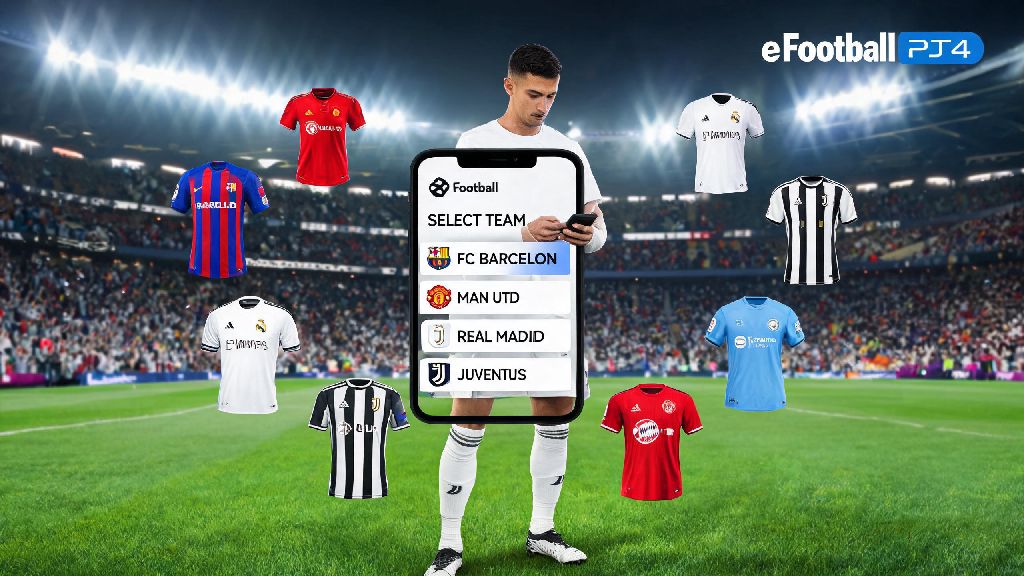
If you’ve ever fumbled through eFootball’s layered menu system trying to figure out how to change your team in eFootball PS4, you’re far from alone. Konami’s soccer franchise has come a long way from its PES days, but its menu layout still stumps new and returning players alike, especially when you’re in a hurry to jump into a match with friends. I once spent 20 minutes scrolling through random club teams before a World Cup themed friendly because I didn’t know the league filter shortcut existed, so this guide is designed to save you that same frustration. We’ll break down the process for every game mode, plus cover common fixes for when the team select option doesn’t work as expected.
How to Change Your Team in eFootball PS4 for Offline Kick Off Matches
Offline Kick Off is the most straightforward mode for switching teams, since there are no progression or currency limits on what you can pick. To get started, boot up eFootball and navigate to the main “Play” tab on the top menu bar, then select the Kick Off option. You’ll be prompted to choose how many local players are joining, and once you confirm that, you’ll land on the team selection screen.
You can scroll left and right to browse all licensed clubs, national teams, and custom squads you’ve created in the game’s edit mode. If you don’t want to sift through hundreds of teams to find your favorite, press the square button to open the filter menu, where you can sort teams by league, country, or overall rating to narrow down your options. You don’t need to spend any GP or coins to switch teams in Kick Off mode, so you can test out every top-tier club as much as you want without impacting your online progression.
If you almost always play with the same team, you can set it as your default Kick Off squad by going to the game’s main settings menu, selecting “Match Settings”, and choosing your preferred team under the Default Squad option. This will save you a couple of clicks every time you boot up the game for a casual match.
Switching Teams in eFootball Dream Team Mode on PS4
Dream Team, eFootball’s flagship online mode, works a bit differently from Kick Off because your core squad is made up of players you’ve collected through packs, events, and transfers. When people talk about switching teams in Dream Team, they usually mean changing their base team branding, which includes the club’s kit, crest, and home stadium. You don’t have to reset your entire squad to do this, and the process only takes a few clicks.
First, open the Dream Team home screen and select the “Club House” tab on the side menu. From there, choose “Base Team Settings” to pull up the full list of available licensed clubs and national teams. Pick the team you want to use, confirm your choice, and the new branding will be applied to your squad immediately. Changing your base team in Dream Team does not affect your existing player roster, progression, or in-game currency balance, so you don’t have to worry about losing weeks of progress just to rep your favorite club’s kit.
If you’re looking to completely overhaul your Dream Team roster instead of just changing the branding, you can release unwanted players for GP, or use the game’s transfer market to sell high-rated players and buy new ones that fit your playstyle. Common mistakes players make when adjusting their Dream Team setups include:
Some special edition base teams, like all-star squads or retro club teams, are only available for a limited time during seasonal events, so make sure to claim them if you see one you like before the event ends.
Changing Teams for Online Friendly and Tournament Matches
Online friendly matches and community tournaments have slightly different rules for team selection, depending on how the lobby is set up. If you’re inviting a friend to a private friendly, you can toggle the “Free Team Select” option on before sending the invite, which will let both of you pick any team from the full game roster, not just your personal Dream Team squads. If you leave that option off, both players will be locked to using their current Dream Team rosters.
For public tournaments hosted through eFootball’s in-game event system, team selection rules are set by the tournament organizer. Some tournaments let you pick any team you want, while others lock you to your Dream Team, or even force all players to use the same pre-set squad for a level playing field. Always check the tournament rules before registering to make sure you’re comfortable with the allowed team pool, because you won’t be able to switch teams once you’ve confirmed your registration.
If you’re playing co-op online with friends, you can only switch teams before the match lobby locks. Once the game starts loading into the pre-match cutscene, you won’t be able to make any changes to your squad or base team, so double check your selection before you hit ready.
Troubleshooting Common Issues When Switching Teams on PS4
Even if you follow all the steps correctly, you might run into occasional glitches or locked options when trying to switch teams. The most common issue is the team select option being greyed out, which almost always means you’re in a mode where team selection is locked. This happens in ranked Dream Team matches, limited-time challenge events that require you to use a specific squad, or tournament lobbies that have locked team settings.
If you select a new team but it doesn’t show up when you load into a match, that’s usually because you forgot to save your settings before exiting the menu, or you have a default team set that’s overriding your new choice. Go back to the team selection screen, confirm your choice again, and make sure you see the “Settings Saved” pop up in the corner of the screen before you back out. If you run into persistent glitches, a quick restart of your PS4 and the eFootball application will fix 90% of team selection bugs, as most of these issues are caused by temporary memory errors.
If you’re missing a specific team you know should be available, check that you have the latest eFootball patch installed. Konami adds new licensed teams, leagues, and national squads every few months with title updates, so you might be running an older version of the game that doesn’t have the team you’re looking for. Never download third-party save files to unlock unlicensed teams, as this can result in a ban from online eFootball services, and can also put your PS4 account at risk of suspension for violating terms of service.
Switching teams in eFootball on PS4 doesn’t have to be a confusing, time-consuming process once you know which menu options to look for in each game mode. Whether you’re playing a casual kick off with your family, climbing the Dream Team ranked ladder, or joining a community tournament with friends, you now know exactly how to change your team in eFootball PS4 to match your preferences. If you’ve found any other handy shortcuts for team selection, feel free to share them with other players in the comments below.