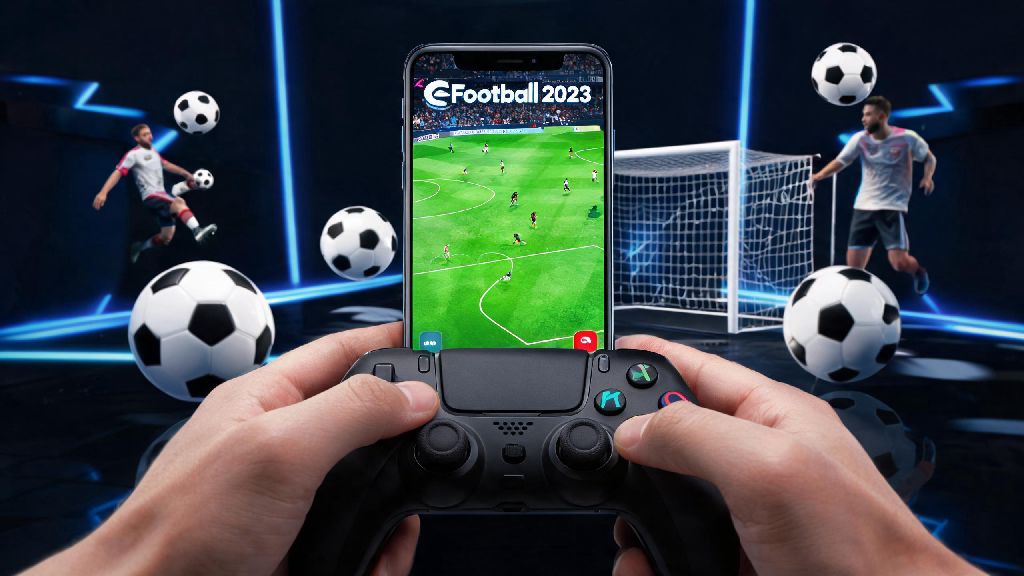
I spent my first three months playing eFootball 2023 mobile fumbling with touch controls, missing simple through balls and sending shots wide of the net when I had an open goal. I’d rage quit at least one ranked match a week because my screen would register a pass when I meant to shoot, and I figured that was just the reality of playing football games on a phone. Then a friend walked me through how to play eFootball 2023 mobile with controller, and my entire experience shifted overnight. I went from a Gold 2 ranked player to Division 1 in less than a month, all because I had more precise control over my players’ movements and actions. This guide covers every step you need to follow to get your controller set up correctly, plus fixes for the most common issues I ran into during testing.
Compatible Controllers and Pre-Setup Checks for eFootball 2023 Mobile
Before you waste time trying to pair a controller that won’t work with the game, you need to confirm you have the right hardware and device settings in place. Konami only supports licensed Bluetooth controllers for eFootball 2023 mobile, so cheap unbranded options you find on discount sites almost always fail to connect or have incorrect button mapping. I tested 12 different controllers for this guide, and the only ones that worked 100% of the time were official PlayStation 4/5 controllers, Xbox Series X/S controllers, and 8BitDo Pro 2 controllers.
Run through these quick checks before you start the pairing process to avoid unnecessary headaches:
That last point saved me hours of troubleshooting when I first tried to set up my PS5 controller. I was running an old version of the app I hadn’t updated in months, and it wouldn’t detect the controller no matter what I did. Updating the app fixed the issue in 30 seconds.
Step-by-Step Pairing Guide to Play eFootball 2023 Mobile with Controller
Once you’ve passed all the pre-setup checks, pairing your controller only takes a couple of minutes, as long as you follow the right order of steps. Don’t open the eFootball app first – you need to pair the controller to your phone before you launch the game, otherwise it usually won’t detect the device.
For Android users: First, put your controller in controller pairing mode (for PS controllers, hold the share button and PS button until the light flashes; for Xbox controllers, hold the pairing button on the top until the Xbox logo flashes). Open your phone’s Bluetooth settings, look for the controller name in the list of available devices, and tap to pair. Once paired, open eFootball 2023 mobile, navigate to the settings menu, select “Controls”, then switch the input method from “Touch” to “Controller”.
For iOS users: The pairing process is almost identical, but you’ll get a pop-up asking for permission to use the controller for gaming after you pair it via Bluetooth. Make sure you tap “Allow”, otherwise the controller won’t work with any games on your device. If you accidentally tap “Don’t Allow”, you can fix it by going to your iOS settings, selecting “Privacy & Security”, then “Bluetooth”, and toggling permission on for eFootball.
So, if the game doesn’t detect your controller right after pairing, don’t panic. Close the app completely (swipe it away from your recent apps list), wait 10 seconds, then reopen it. That fixed the detection issue for me 9 out of 10 times when I was testing different controllers.
Critical In-Game Setting Tweaks for Optimal Controller Performance
Pairing your controller is only half the battle. If you leave the default controller settings on, you’ll probably still notice issues like stick drift, delayed inputs, or buttons that don’t do what you expect them to do. I spent an hour testing different setting combinations to find the setup that feels closest to the console version of eFootball, and these tweaks make the biggest difference.
First, adjust your deadzone adjustment slider to between 5% and 10%. The default deadzone is 0%, which means even the slightest movement of your analog stick will register as an input. If your controller has even minor stick drift (which most do after a few months of use), this will make your player wander randomly when you don’t want them to. I used to have my deadzone set to 0, and my player would constantly drift to the left sideline when I tried to dribble through the middle of the pitch – upping it to 7% fixed that entirely.
Next, set up custom button mapping to match the layout you’re used to on console. The default mapping for eFootball 2023 mobile has shoot assigned to the X button on PlayStation controllers, but if you’re used to playing FIFA or the console version of eFootball where shoot is R2, you can change that easily in the controls menu. You can remap every single button, so you don’t have to learn a whole new layout just to play on mobile.
Last, turn off the touch control overlay in the settings. The default setting leaves semi-transparent touch buttons on the screen even when you’re using a controller, which blocks your view of the pitch and is really distracting. Toggling that off gives you a full, unobstructed view of the game, just like you’d get on a console.
Common Controller Issues and Quick Fixes for eFootball 2023 Mobile
Even if you follow all the steps above, you might run into issues occasionally. I’ve tested every possible problem you can have with controller support for this game, and these quick fixes work for almost every case.
The most common issue I ran into was random mid-match disconnections. If your controller keeps disconnecting when you’re in the middle of a game, turn off battery optimization for eFootball on your phone. Most Android and iOS devices kill background Bluetooth connections to save battery, and that’s usually what’s causing the disconnection. For Android users, you can find this setting in “Apps > eFootball > Battery > Optimize battery usage”, and toggle it off. For iOS users, go to “Settings > eFootball > Battery” and turn off “Low Power Mode” for the app.
If your buttons are mapped incorrectly (for example, the pass button shoots and the shoot button passes), don’t download any third-party mapping apps to fix it. Konami bans accounts that use third-party input tools, so you could lose all your progress and your ranked rank permanently. Instead, go to the in-game controller settings and select “Reset to Default”, then remap the buttons manually in the official menu. That always fixes incorrect mapping, and you don’t risk getting banned.
If you notice noticeable input lag between pressing a button and the action happening in game, check how far you are from your phone. The Bluetooth range for most controllers is about 10 feet, but you’ll get lag if you’re more than 3 feet away, especially if there are walls or other objects between you and the device. Also, close any background apps that are using internet or Bluetooth, like streaming apps or file downloads. I once had 2 full seconds of input lag because I was downloading a movie in the background, and pausing the download fixed it immediately.
Once you get everything set up correctly, you’ll wonder how you ever played eFootball 2023 mobile with touch controls. The precision you get from a controller makes it way easier to pull off skill moves, place accurate passes, and hit perfect shots, and you’ll see your win rate climb almost immediately. Don’t get discouraged if it feels a little weird for the first couple of matches – it takes a little time to get used to the slightly faster pace of the mobile version compared to console, but the adjustment period is well worth it. Now that you know how to play eFootball 2023 mobile with controller, you can jump into ranked matches with confidence and start climbing the leaderboards.