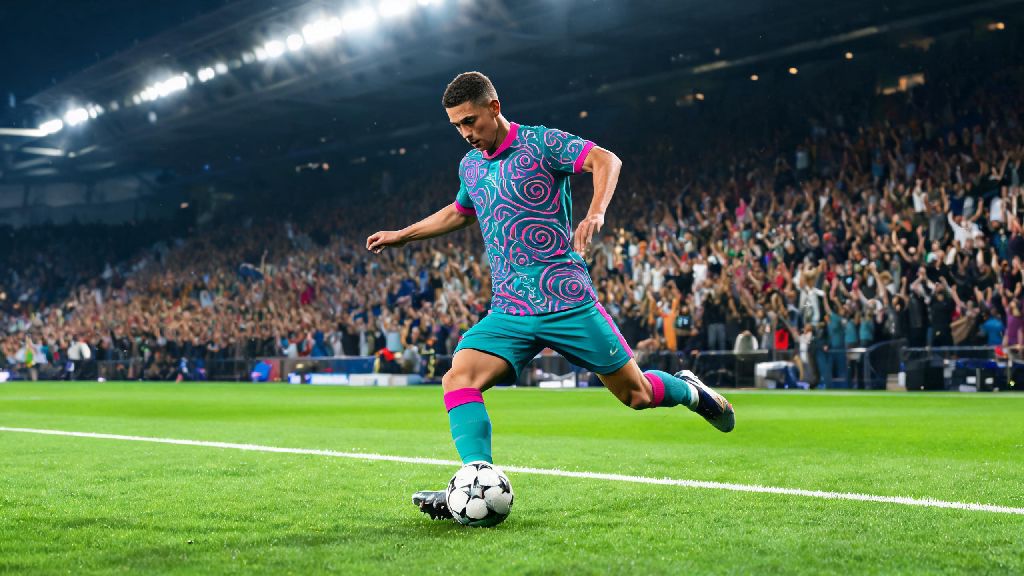
There’s nothing more annoying than loading up a friendly eFootball match against your best friend, only to realize you both picked the same home kit. You’ll spend the first 10 minutes squinting to tell your striker apart from their defender, and half your passes will go to the wrong player by mistake. That’s why learning how to change uniform in eFootball is one of the first basic skills every new player should master, long before you start practicing advanced skill moves or custom tactics. It doesn’t just fix clashing kit issues, it also lets you show off custom designs, use classic retro kits, and even make small tweaks that improve your gameplay over time.
How to Change Uniform in eFootball for Quick Matches & Offline Modes
For casual matches, offline tournaments, or co-op games with friends, changing your uniform takes just a few seconds, no menu deep dives required. The option pops up right on the team selection screen, right after you pick which team you want to use. Look for the small t-shirt icon in the corner of your team’s info card, and press the corresponding button for your platform: X on PlayStation, A on Xbox, or left click if you’re playing on PC. If you’re playing against an opponent with a similar colored kit, the game will usually prompt you to swap automatically, but you can override this to pick your preferred option. You can toggle between home, away, and third kits for official teams, or pick any custom kit you’ve saved to your account if you’re using a custom squad. One thing to note here is that these changes only apply to the single match you’re about to play. If you quit and load up a new match later, your kit will revert to the default home option for that team, so you’ll have to reselect your preferred uniform each time if you don’t want the default. This setup works great for casual play, since you can adjust on the fly to avoid kit clashes without messing up your permanent team settings.
Steps to Update Permanent Uniforms for Your Custom Dream Team
If you play eFootball Dream Team, you probably want your go-to kit to load automatically every time you play, instead of having to select it for every match. Changing your permanent uniform takes a few extra steps, but it only takes a minute to set it and forget it for months at a time. The process is the same across all platforms, except for a small difference in menu layout for PC players. Follow these simple steps to make the change stick:
Troubleshooting Common Uniform Change Issues
Even if you follow all the steps correctly, you might run into occasional glitches that stop your uniform changes from saving or showing up correctly. These issues are usually easy to fix, once you know what’s causing them. The most common problem people report is their uniform reverting to the default option after they exit the menu. This almost always happens because you forgot to press the "Save Changes" button before backing out of the customization menu, so double check that you see the save confirmation pop-up before you leave. If you’re sure you saved and it’s still reverting, you might have a corrupted save file for your custom team, so try resetting your club customization settings and reuploading your kits. Another common issue is not being able to see custom uniforms during online matches. This isn’t a glitch, it’s a setting many players turn on to reduce lag. You can turn off custom uniform visibility in your own settings if you’re running into lag during online matches, as high-resolution custom designs can take extra bandwidth to load. If you’re playing in a competitive eFootball tournament, keep in mind that many organizers ban custom uniforms entirely to avoid unfair advantages, like designs that make player numbers hard to read or that blend in with the pitch. Always check the tournament rules before you join, so you don’t get disqualified for using a non-approved kit.
Fun Ways to Use Uniform Customization to Improve Your Gameplay
Most players think uniform changes are just for making their team look cool, but they can actually have a small but noticeable impact on your gameplay, especially if you play for multiple hours a week. The biggest benefit is picking high contrast kits that make it easier to tell your players apart from the opposition, the pitch, and the crowd. For example, if you play a lot of matches in rainy or night time conditions, a bright orange or yellow away kit will stand out way more than a dark blue or black kit against the wet, dark grass. Many pro eFootball players use distinct, high-contrast goalkeeper kits so they can quickly spot their keeper when making long passes or defending counterattacks. This split second difference in reaction time can be the difference between stopping a goal and conceding, especially in high-stakes online matches. You can also use custom uniforms to make local co-op tournaments with friends more fun. Design custom kits for each player in your group, add your own inside jokes as logos, or recreate classic kits from your favorite childhood football teams. Just make sure any custom designs you upload follow the game’s content guidelines, so they don’t get taken down later. If you’re someone who gets bored using the same kit every week, you can even set a schedule to swap your home and away kits every few weeks to keep the game feeling fresh.
At the end of the day, small tweaks like swapping your kit don’t just make your game look better, they can also give you tiny quality of life improvements that add up over a long session. Now that you know how to change uniform in eFootball, you can stop squinting to tell your players apart mid-match, show off your custom designs to friends, and avoid the annoying glitches that used to ruin your kit setups. Don’t be afraid to experiment with different kit designs to find what works best for your playstyle, whether that’s a bright high-contrast option for competitive play or a classic retro kit for casual matches with friends. If you try out a new custom design you love, feel free to share it in the comments below!