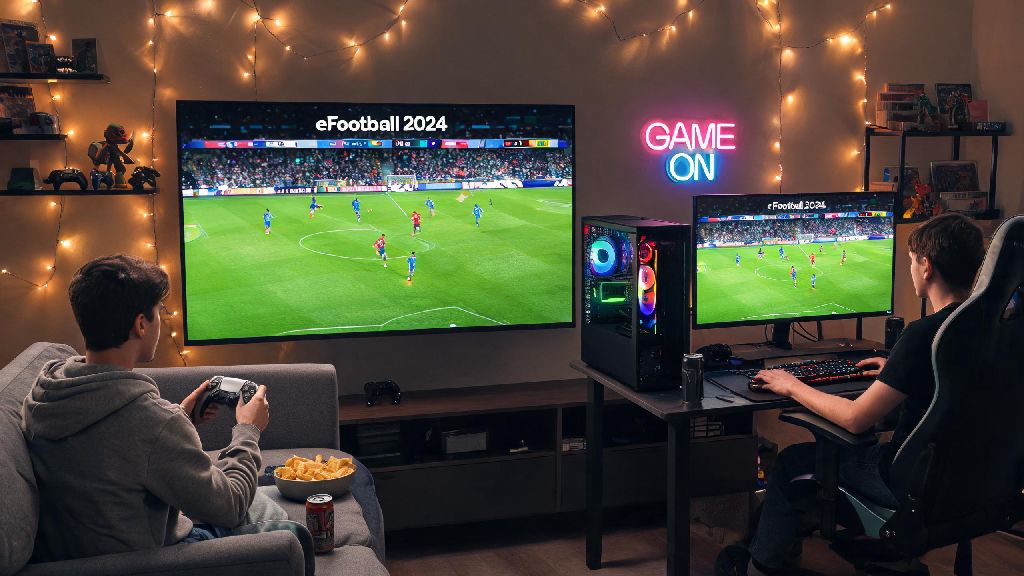
There’s nothing better than settling in for a casual gaming session with a friend, no laggy online matches or random toxic opponents to ruin the fun. If you’ve been digging through eFootball 2024’s menus for 10 minutes trying to find the local play option, you’re not alone. Konami rearranged a lot of the mode navigation in the last big update, so even long-time players can get confused when they first try to set up a match with someone in the same room. This guide breaks down every step you need to know to learn how to play 2 player on eFootball 2024, whether you’re on console, PC, or mobile, and fixes the most common headaches that pop up during setup.
What You Need Before You Learn How to Play 2 Player on eFootball 2024
Before you jump into setting up your match, there are a few basic things you’ll need to have sorted first to avoid frustration mid-setup. Most of these are common sense, but it’s easy to overlook small details that can stop you from playing for 20 minutes while you troubleshoot. You don't need an active PlayStation Plus or Xbox Live subscription for local 2 player play, which is a big plus if you only play offline or don’t want to pay for a premium online service. Mobile users will need to enable Bluetooth if they are using external controllers, as the game won’t detect paired controllers if Bluetooth is turned off after you open the app.
It’s also a good idea to charge all your controllers fully before you start playing, especially if you’re using wireless options. I’ve had multiple sessions cut short 20 minutes in because a second controller died halfway through a tight cup final, and it’s always a buzzkill. If you’re playing on PC, make sure any third-party controllers you use are compatible with your operating system first, as some generic budget controllers won’t work with eFootball 2024 at all, even if they work with other games on your device.
Step-by-Step Setup for Local 2 Player Matches
Local couch co-op is the most popular 2 player mode for most people, and the setup process is pretty much the same across all consoles, with small variations for PC and mobile. First, open eFootball 2024 and wait for the main menu to load fully. Don’t click into any online modes first, as this can force the game to load online resources that make the local play option disappear temporarily. If you can't find the Friend Match option, make sure you have completed the initial tutorial first, as the game locks most offline modes until you play through the 10-minute beginner tutorial.
For PlayStation and Xbox users, navigate to the “Friend Match” tab on the top bar of the main menu, then select “Local Play” from the dropdown options. You’ll see a prompt to assign controllers to each player; just press any button on the second controller to assign it to the second player slot. From there, you can pick your teams, adjust match settings like length, difficulty, and whether injuries or offside rules are enabled, and start playing. You can even use custom teams you’ve built in Dream Team mode for local play, which is a fun way to show off the squad you’ve spent months grinding for.
PC users will follow almost the same steps, but you may need to go into the “Controller Settings” menu first to map the buttons for your second controller if it’s not an official Xbox or DualSense controller. The game automatically detects official controllers, but generic options will need manual mapping to make sure pass, shoot, and sprint buttons work as expected. Mobile users have two options: split-screen touch controls, or two external controllers. Split screen only works on devices with a screen larger than 6 inches, and I’ve found it works far better on tablets than phones, since the touch controls don’t feel cramped for either player. If you’re on a smaller phone, you’ll need to connect two Bluetooth controllers to play 2 player mode.
How to Set Up Online 2 Player Co-Op With Friends
If you want to play with a friend who isn’t in the same room, you can set up online 2 player co-op instead. This mode lets you team up to play against random 2-player pairs online, take on AI opponents together, or set up private lobbies to play against another pair of your friends. Online 2 player co-op requires both players to have their own copy of the game and a stable internet connection, and you’ll need to add each other to your in-game eFootball friends list first before you can send a lobby invite.
To set up a co-op lobby, go to the “Online” tab on the main menu, then select “Co-op Match” from the options. You can choose between 2v2 random matches, 2vAI matches, or private lobbies. If you’re creating a private lobby, you’ll get a 5-digit code that you can send to your friend so they can join directly, no need to search for their username. You earn the same amount of in-game coins, GP, and XP from co-op matches as you do from regular single player online matches, so it’s a fun way to grind for new Dream Team players without playing alone. Just keep in mind that you can’t use custom Dream Team squads for public co-op matches, only for private lobbies with friends.
One common issue people run into with online co-op is being unable to join a friend’s lobby even if you’re both on the same platform. If this happens, check that you both have the same game version installed, and that your region settings in your eFootball account are set to the same region. Cross-play is supported for online co-op between PS5, Xbox Series X/S, and PC, but you’ll need to turn on cross-play in your game settings first to join friends on other platforms.
Common 2 Player Issues and Quick Fixes
Even if you follow all the setup steps perfectly, you might run into small issues that stop you from playing, but most of these have super simple fixes that take less than a minute to try. If you are experiencing input lag in local 2 player mode, turn off VSync in the graphics settings to reduce delay, as VSync can add extra input lag when two players are playing at the same time, especially on lower-end devices. If your second controller isn’t being detected at all, restart the game with the controller already paired or plugged in, as the game often doesn’t detect controllers that are connected after it’s already opened.
For mobile users who can’t access split-screen mode, first make sure your device is running the latest version of its operating system, as older OS versions often don’t support split-screen for games. You should also turn off auto-rotate in your device settings and lock your phone to landscape mode before you open the eFootball app, as the game won’t switch to split screen if it’s loaded in portrait mode. If you’re getting constant disconnects in online co-op matches, try restarting your router, or switching to a wired internet connection if you’re on PC or console, as Wi-Fi can be unstable for multiplayer matches.
Never use modified controller settings for local play if you're playing with new players, as it can make the game unapproachable for casual fans. If you’re a more experienced player, adjust the difficulty level down instead of making the controls harder for new players, so everyone can have fun without feeling overwhelmed. I always set the difficulty to professional when I play with friends who don’t play eFootball often, and it strikes the perfect balance between being challenging enough for me and not too hard for them.
At the end of the day, learning how to play 2 player on eFootball 2024 is a lot simpler than it seems once you know where to find the right menus. Whether you’re playing casual couch matches with your roommates on a weekend, or teaming up with a long-distance friend to climb the co-op leaderboards, the setup process only takes a couple of minutes once you’ve done it once. Don’t be afraid to mess around with match settings to find what works best for your group, whether that means turning off offside rules for a silly casual match or cranking up the difficulty for a more competitive game. The best part of 2 player eFootball is that you can tailor the experience to exactly what you and your friends want out of a gaming session.