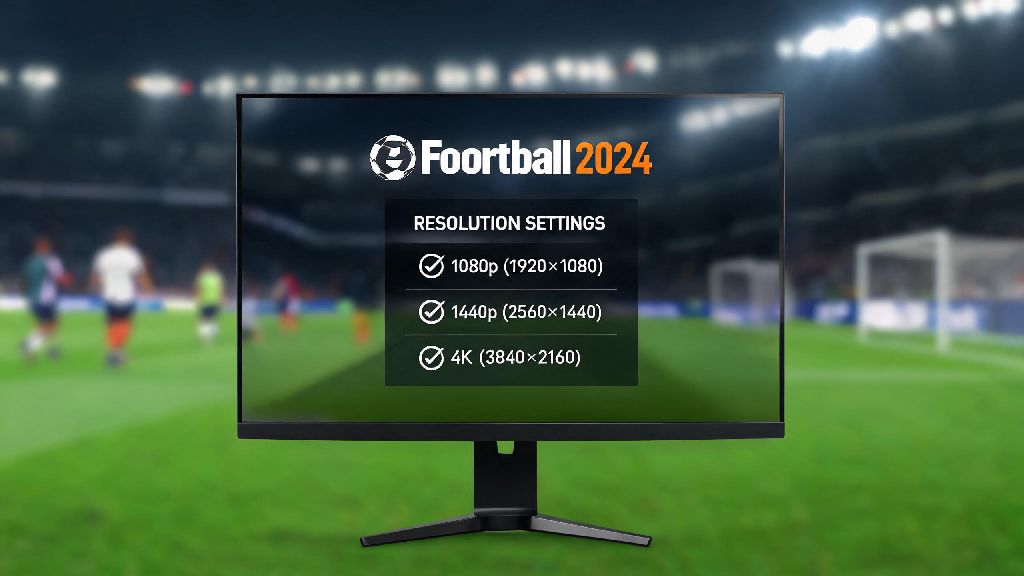
If you’ve ever booted up eFootball 2024 only to be greeted by stretched visuals, blurry player textures, or frame rate drops that throw off your penalty kicks, you’re not alone. A wrong resolution setting is one of the most common (and easiest to fix) issues plaguing new and returning players alike, and knowing how to change resolution in eFootball 2024 can instantly turn a frustrating session into a crisp, responsive gaming experience. I’ve spent dozens of hours testing resolution settings across PC, console, and even mobile builds of the game to find the most reliable methods, no advanced tech knowledge required.
How to Change Resolution in eFootball 2024 for PC: Step-by-Step Steps
PC players have the most flexibility when it comes to resolution adjustments, but that also means there are more places for things to go wrong. First, launch the game and head to the main menu. Don’t jump straight into a match, because you can’t adjust resolution mid-game without crashing in most cases. Navigate to the Settings tab in the top right corner, represented by a small gear icon. From there, select Video Settings to pull up all display-related options.
If your game crashes on launch so you can’t access in-game settings, you can edit the config file directly. Head to your Documents folder, open the eFootball 2024 folder, and find the “settings.ini” file. Look for the lines labeled “ResolutionWidth” and “ResolutionHeight” to input your desired values manually, then save the file before launching the game again. Just make sure you don’t edit any other lines if you don’t know what they do, or you might have to reinstall the game to fix errors.
Adjusting eFootball 2024 Resolution on Consoles (PlayStation & Xbox)
A lot of console players assume resolution is set automatically, but that’s not always the case, especially if you use a monitor that supports multiple refresh rates or resolutions. For PlayStation 5 or Xbox Series X/S users, first make sure your console’s system display settings are set to your desired output before launching the game. For example, if you want to play eFootball 2024 in 4K, your console has to be set to 4K output first, or the game won’t give you that option.
Once you’ve confirmed your system settings, launch the game and head to the Video Settings menu just like you would on PC. Console players don’t have as many custom resolution options as PC users, but you can toggle between Performance Mode (1080p/60fps) and Quality Mode (4K/30fps) depending on what you prioritize. If you’re playing competitive matches, I always recommend Performance Mode, because the higher frame rate makes it far easier to time tackles, passes, and shots than slightly sharper visuals. For older consoles like the PlayStation 4 or Xbox One, the resolution is mostly locked, but you can turn off post-processing effects in the Video Settings menu to reduce blur if you’re unhappy with how the game looks.
Common Resolution Mistakes to Avoid in eFootball 2024
Even if you follow all the steps to change your resolution correctly, small mistakes can leave you with worse visuals or performance than you started with. One of the most common mistakes I see is players selecting a resolution that doesn’t match their screen’s aspect ratio. For example, if you have an ultrawide 21:9 monitor, picking a 16:9 resolution will leave you with stretched players or black bars on the side of the screen. Another big mistake is keeping VSync turned on when you’re using a non-native resolution. VSync can cause severe input lag when your resolution doesn’t match your monitor’s native output, which is a death sentence for competitive play.
Never use a custom resolution that your monitor doesn’t officially support, even if you see people online claiming it boosts performance. Doing this can damage your monitor over time, or cause the game to crash repeatedly. Also, don’t forget to restart the game if you make any config file changes on PC, or those changes won’t take effect when you launch it. I’ve made that mistake myself before, spending 20 minutes tweaking settings only to realize I forgot to restart the game, so save yourself the frustration.
How to Pick the Best Resolution for Your Play Style
The “best” resolution isn’t always the highest one available, and it depends entirely on what you use eFootball 2024 for. If you’re a casual player who mostly plays offline matches against the AI or friends on the couch, you can prioritize the highest possible resolution your device supports, since visual quality will make the game more immersive. You’ll be able to see small details like player tattoos, jersey textures, and crowd animations far more clearly, which makes single-player modes like Master League feel much more engaging.
If you’re a competitive player who participates in online ranked matches or tournaments, you should prioritize frame rate over resolution every single time. Even a 720p resolution at a stable 60fps will give you a far better chance of winning matches than 4K at 30fps, because you’ll have far less input lag and the game will respond instantly to your button presses. If you stream your eFootball 2024 gameplay, you’ll want to strike a balance between the two. 1080p at 60fps is the sweet spot for most streaming platforms, as it gives your viewers clear visuals without putting too much strain on your device’s CPU and GPU. If you play on mobile, stick to the recommended resolution the game suggests on first launch, as mobile devices have far less processing power than PCs or consoles, and changing to a higher resolution can drain your battery in less than an hour of play.
At the end of the day, tweaking your display settings doesn’t have to be a complicated process, and taking 5 minutes to learn how to change resolution in eFootball 2024 can completely transform how you experience the game. Don’t be afraid to test different settings for a few matches each to find what works best for you, because what feels right for another player might not feel right for you. Whether you’re chasing a higher rank in online play or just want to enjoy crisp cutscenes in your Master League career, the right resolution setting is one of the simplest ways to get more out of every minute you spend in the game.