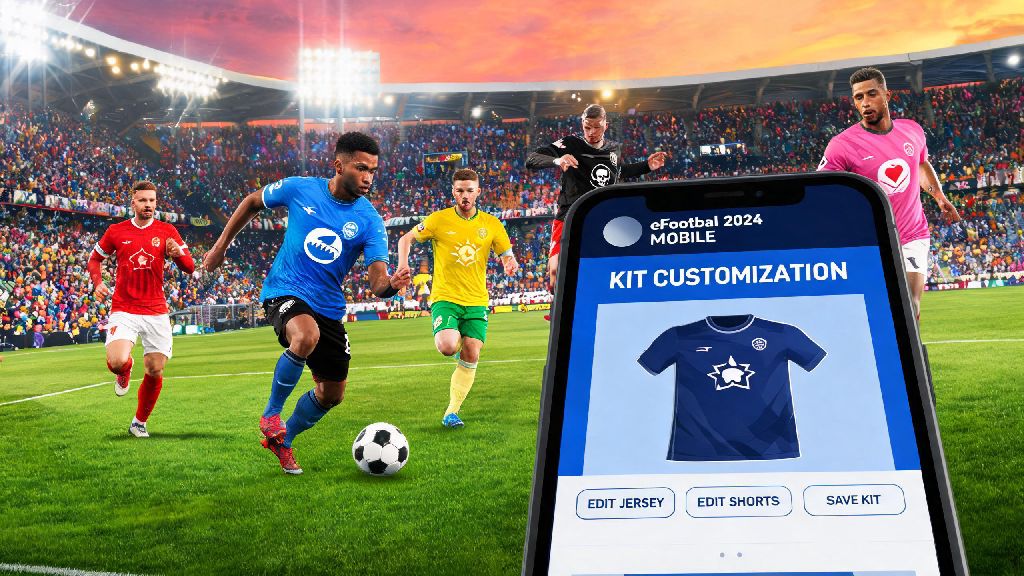
If you’ve ever loaded into an eFootball 2024 Mobile match and groaned at seeing the same boring default kit on your team for the 10th game in a row, you’re not alone. Customizing your team’s look is one of the most fun parts of football games, letting you show off your favorite club, rep your national team, or just rock a design that matches your personal style. I’ve been playing eFootball mobile since it first launched, and I used to waste 10 minutes scrolling through random menus trying to find the kit settings when I first started. In this guide, we’ll cover exactly how to change kits in eFootball 2024 mobile, plus everything else you need to know to build a kit collection you love.
Step-by-Step Guide on How to Change Kits in eFootball 2024 Mobile
The process of switching your kit is a lot simpler than most new players realize, once you know exactly which menu to navigate to. You don’t need any special items or achievements to access the kit selection screen, as long as you already own the kit you want to use. Start by opening the game and waiting for the main home screen to load fully, so you don’t run into any lag when navigating menus. From the bottom navigation bar, tap the “Extras” icon, which looks like a small gear next to the in-game store button. Next, select the “Team” option from the Extras menu, and you’ll see a sub-menu that includes Kit, Crest, Manager, and Squad settings. Tap “Kit” to pull up all the kits you currently own, sorted by home, away, and goalkeeper designs. Tap the kit you want to use, then hit the “Confirm” button in the bottom right corner to save your changes. Always make sure you have claimed the kit from your inbox before trying to equip it, since newly earned kits won’t show up in your selection menu until you’ve accepted the reward. You can test if the change worked by loading into a friendly offline match right after saving, no need to wait for an online game to check.
How to Unlock New and Custom Kits for Your Team
Changing kits is only fun if you have more than just the default designs to pick from, and there are tons of free and paid ways to build out your kit collection in the game. You don’t have to spend real money to get great kits, either, as long as you log in regularly and complete event challenges. Some of the rarest kits in the game are only available for limited times, so it’s worth checking the event page at least once a week to see what new rewards are up for grabs. The most common ways to unlock new kits include:
It’s important to note that some limited kits are only available for specific teams, so if you’re using a custom created team instead of a licensed club, you won’t be able to equip those team-specific designs. Retro collaboration kits are only available for 2-4 weeks during their event, so grab them before they are gone because they almost never come back to the in-game store later. I missed out on a limited edition 1998 World Cup kit last year because I waited too long to complete the event challenges, and I haven’t seen it available since.
Common Glitches When Changing Kits and How to Fix Them
Even if you follow all the steps correctly, you might run into a few common issues when trying to switch your kit, especially after a big game update. Most of these glitches are easy to fix in less than a minute, no need to reinstall the game or contact support unless the problem lasts for more than a few days. One of the most common issues is a kit you just earned not showing up in your selection menu, even after you claimed it from your inbox. This usually happens when your game data hasn’t synced properly with the server, so all you need to do is close the game completely, restart it, and check the kit menu again. Another common issue is your kit reverting to the default design after you finish an online match. This usually happens if you didn’t hit the confirm button properly when saving your changes, or if you have a weak internet connection when you save the setting. If your kit keeps reverting to default, try unequipping all custom items first, then reapply the kit you want to use before saving again. Some players also report that custom kits don’t load during online ranked matches, but this isn’t a glitch most of the time. Ranked and tournament modes often restrict custom kits to prevent players from using low-visibility designs that give them an unfair advantage, so you’ll be assigned a default kit for those modes no matter what you have equipped in your settings. If you’re having trouble with kits not loading in friendly matches, make sure you have the latest game update installed, as outdated versions often have asset loading bugs.
Pro Tips to Make Your Kit Setup Stand Out During Matches
Changing your kit isn’t just about looks, it can also make your gameplay smoother if you pick the right designs for different match types. A lot of players don’t think about how kit design impacts their ability to tell their team apart from the opponent, but picking the wrong kit can lead to accidental passes to the other team that cost you goals. Pick away kits with bright, contrasting colors if you often play against teams with dark home kits to avoid passing to the wrong player by mistake. For example, if your home kit is dark blue, pick a neon yellow or white away kit so you can easily spot your players even when the camera is zoomed out during fast counterattacks. You should also pick a goalkeeper kit that is completely different from both your outfield kit and the opponent’s kit, so you don’t accidentally pass to your keeper when you’re trying to pass to a defender. You can save up to 3 different kit presets for home, away, and cup matches to switch between them in 2 taps, no need to go through the full menu every time you play against a team with a similar kit color. If you want to make your team even more unique, you can pair your custom kit with a custom crest and ball design that matches the color scheme, so your whole setup feels cohesive. Just avoid using kits with really busy patterns that make it hard to tell individual players apart, especially if you play on a smaller phone screen where details are harder to see.
Now that you know how to change kits in eFootball 2024 mobile, you can stop settling for the boring default kit every time you step onto the pitch. Take a few minutes to browse your current collection, see what event rewards are available right now, and tweak your setup to match your personal style and gameplay needs. Don’t forget to grab limited-edition kits while they are available, since they’re a great way to show off how long you’ve been playing to your opponents. If you run into any snags that we didn’t cover here, feel free to share your issue in the comments below and we’ll help you figure out a fix.