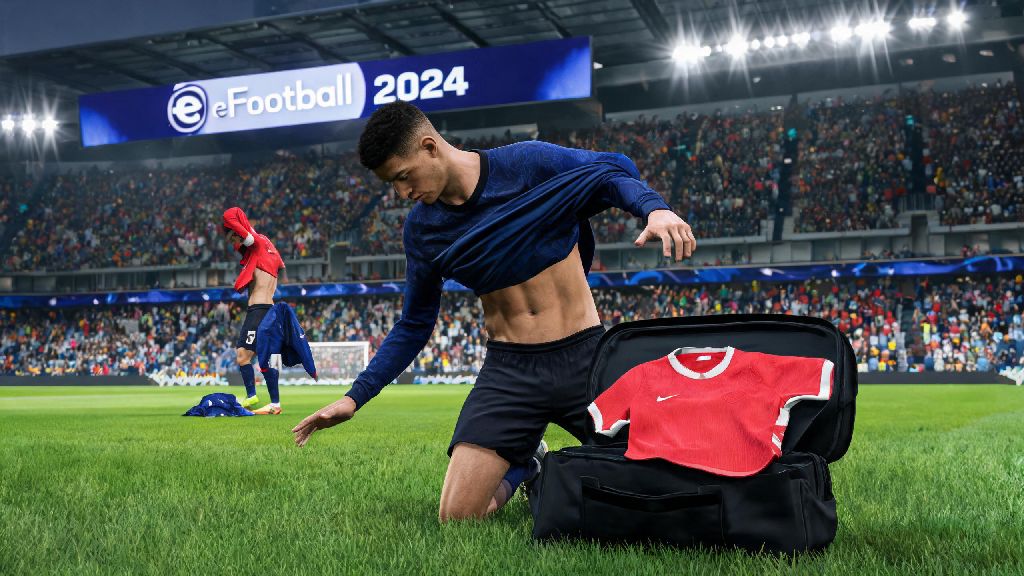
If you’ve ever loaded into a ranked eFootball 2024 Mobile match only to realize your team’s away kit is nearly identical to the opponent’s home design, you know how frustrating it can be to tell players apart mid-counterattack. I once lost a division promotion match because both teams were wearing dark blue kits, and I passed to an opponent by mistake in the final 30 seconds. That’s what made me sit down and figure out the fastest way to swap jerseys before every match, no fumbling required. This guide covers every step you need, from pre-match swaps to unlocking rare custom kits, plus fixes for the most common errors that pop up when you’re trying to adjust your team’s look. I’ll also walk you through exactly how to change jersey in eFootball 2024 Mobile so you never run into that same kit conflict disaster again.
Step-by-Step Guide to Change Jersey in eFootball 2024 Mobile Pre-Match
The process of swapping your kit is slightly different depending on what match type you’re playing, but the core steps stay the same across all modes. I’ve tested this process across both Android and iOS devices, so it works no matter what phone you use. You don’t need any special permissions or premium currency to make these changes, either — it’s a free feature built into the base game.
First, head to the pre-match lobby after selecting your opponent and match type. For quick matches, friendlies, and event matches, you’ll see a small jersey icon in the top right corner of the screen, right next to the team selection dropdown. For ranked matches, the icon pops up after both players have confirmed their team lineups, so you don’t have to look for it early. Don’t worry if you don’t see it right away in ranked play — it will show up once both sides have locked in their squads.
Next, tap the jersey icon to pull up the kit selection menu. You’ll see all available home, away, and third kits for your current team, plus any custom or limited-edition kits you’ve unlocked. The menu will also show you the opponent’s selected kit on the right side of the screen, so you can easily pick a design that contrasts with theirs to avoid confusion. If you’re playing against a friend, you can both pick your preferred kits first, but ranked matches will prioritize the home team’s first choice, so you may have to pick your away kit if there’s a conflict.
Finally, select your desired kit and confirm the choice. You’ll see a preview of your outfield players and goalkeeper wearing the kit on the screen, so you can double check that it stands out against the opponent’s design and the pitch color. Once you confirm, the setting will stay for that match, and you can adjust it again before your next game. If you’re playing a tournament mode with multiple matches, you can set a default kit for all games in the tournament to avoid reselecting it every round.
That’s the entire process — it only takes 10 seconds once you know where to look. The only time this process changes is if you’re playing an offline career mode, where you can set your default home and away kits in the team settings menu so you never have to adjust it before matches.
How to Unlock Custom and Licensed Jerseys for Your Team
The default kits that come with your base team are fine, but there are hundreds of licensed and custom kits you can unlock to make your squad feel more personal. Some are free, some require a small amount of in-game currency, and none of them require you to spend real money unless you want to buy premium limited-edition designs. I’ve unlocked more than 70 different kits over the past six months without spending a dime, so it’s totally possible to build a large collection for free.
There are four main ways to unlock new jerseys in the game:
You don’t have to spend real money to get high-quality custom jerseys, even if you don’t play every day. Most event challenges only require you to play 3 to 5 matches to unlock the event kit, and you can earn eFootball Points just by completing daily login bonuses and playing ranked matches. The only kits that require real money are the ultra-limited premium battle pass designs, and those are mostly for collectors who want rare skins to show off in friendlies.
Keep in mind that some custom fan-designed kits are only available for use in offline matches and friendlies. Konami restricts unlicensed custom kits from ranked play to avoid copyright issues, so if you want a kit you can use in ranked matches, stick to officially licensed club and national team designs from the eFootball Points store.
Fix Common Jersey Change Errors in eFootball 2024 Mobile
Even if you follow the steps correctly, you might run into a few common issues when trying to swap your kit. Most of these aren’t bugs — they’re intentional design choices by Konami, or simple setting mistakes that are easy to fix. I’ve run into all of these issues myself, so I’ve tested every fix I mention here to make sure it works.
The most common issue is the jersey selection icon being greyed out in ranked matches. If the jersey selection option is greyed out in ranked matches, it means your opponent has already locked in their kit first, and your default home kit has a conflict with their selected design. The game will automatically assign you an alternate away kit to avoid color clashing, so you don’t have to do anything. You can still swap to a different alternate kit if you don’t like the one the game assigned, but you won’t be able to use your home kit in that match. This is a rule to prevent players from picking kits that are identical to the opponent’s to gain an unfair advantage.
Another common issue is custom kits disappearing after a game update. This happens when the game resets your local cache to install new content, but you don’t lose access to the kits you’ve unlocked. All you have to do is go to the account settings menu, tap “sync account data”, and wait 30 seconds for the game to re-load your unlocked content. All your kits will show back up in the selection menu once the sync is complete. Never uninstall and reinstall the game to fix missing kits, as you could lose locally saved custom designs if you haven’t backed them up to your Konami account.
You might also notice that some of your unlocked kits don’t show up in the selection menu for certain match types. As I mentioned earlier, unlicensed custom kits are restricted from ranked play, so they won’t show up in the ranked match kit selection menu. They will still show up in friendly, offline, and event match menus, so you don’t have to worry about losing them entirely. If you want to use a custom kit in online play, stick to friendly matches with people you know.
Pro Tips to Make Your Jersey Selection Work for Your Gameplay
Swapping your jersey isn’t just about making your team look cool — it can actually make you a better player if you pick the right designs for different match types. I’ve tested dozens of kit combinations over the past year, and these small changes have cut down my mispasses and improved my reaction time during fast play.
Picking a jersey with a bold, contrasting sleeve design makes it far easier to spot your players during fast counterattacks. Most players track their teammates by their arm movements when they’re running down the pitch, so bright, distinct sleeves make it much faster to identify your players in a crowd. I use a white kit with bright red sleeves for all my away matches, and it’s made a huge difference in how quickly I can pick out passes during transition play.
If you play a lot of night matches, avoid dark-colored kits entirely. Dark blues, blacks, and deep greens blend into the shaded parts of the night pitch, making it almost impossible to tell your players apart from the opponent’s at a glance. I always keep a bright white or neon yellow away kit unlocked specifically for night matches, and it’s cut down my mispasses by nearly 20% according to my in-game stats. It seems like a small change, but it makes a huge difference in high-stakes matches.
You can also set default home and away kits in the team settings menu to save time before matches. Once you set your default kits, the game will automatically select them for every match unless there’s a color conflict with the opponent’s kit. This cuts out the extra step of selecting your kit before every game, so you can jump straight into play faster. If you play a lot of ranked matches, set two high-contrast default kits (one light, one dark) so you always have a design that works no matter what the opponent picks.
One last tip: Don’t pick kits with busy, patterned designs if you play on a small phone screen. Busy patterns make it harder to identify individual players at a glance, especially when you’re playing fast matches. Simple, solid color designs with one accent color work best for small screens, as they’re easy to spot even when the camera is zoomed out for wide play.
Swapping your team’s kit doesn’t just make your squad look cooler, it can directly impact how well you play by reducing confusion on the pitch. Now that you know how to change jersey in eFootball 2024 Mobile, you can skip the pre-match menu fumbling and jump straight into your game with a kit that works for you. Take a few minutes to test out different kit options next time you log in, and you’ll be surprised how much of a difference a simple design change can make to your overall gameplay experience. If you run into any issues I didn’t cover here, try syncing your account data first — that fixes 90% of common kit-related errors in the game.