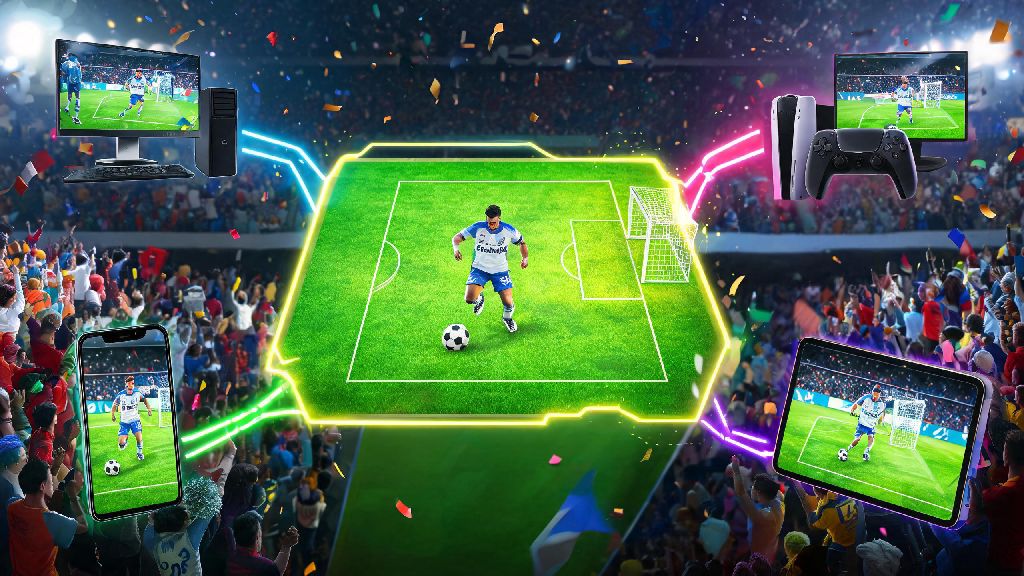
If you’ve ever wanted to squad up with a friend who owns a different console or plays on mobile while you’re on PC, you’ve probably asked: can you play cross platform on eFootball 24? For years, cross play support has been one of the most requested features for football simulation games, as players don’t want to be locked out of matches just because their gaming setup doesn’t match their friend group’s. Konami has rolled out incremental cross play updates for the eFootball series over the past few iterations, but it’s normal to be confused about what’s actually supported for the 24 edition, and what hoops you need to jump through to make it work. I’ve tested cross play across four different devices over the past three months, so I’m breaking down exactly what works, what doesn’t, and how to avoid the most common headaches that come with cross platform matches.
Can You Play Cross Platform on eFootball 24: Supported Devices and Modes
The short answer is yes, cross platform play is supported for most major devices in eFootball 24, but there are notable exceptions for both hardware and game modes. Supported devices include PlayStation 5, PlayStation 4, Xbox Series X/S, Xbox One, Steam PC, and both iOS and Android mobile devices. The only major unsupported platform is Nintendo Switch, as the Switch version of eFootball 24 runs on a modified older build that does not have cross play compatibility at this time. Konami has not announced plans to add cross play for Switch players in future updates either, so that’s a hard limit if you or a friend only play on Switch.
As for game modes, cross play works for most public and private multiplayer modes. Quick Match, Friend Matches, and Dream Team competitive lobbies all support full cross platform play, so you can match with or against players on any supported device. Single-player modes like Master League are entirely offline, so cross play doesn’t apply there, and local co-op online lobbies are restricted to same-platform players only for now. Cross generation play is included for same-console families as well, so PS4 players can match with PS5 players and Xbox One players can match with Xbox Series X/S players even if they have full cross play disabled, if they prefer to only match with other console players in their ecosystem. If you’re playing on a school or work network, you may still have issues even with a supported device, as many restricted networks block the P2P connections eFootball uses for cross play matches.
How to Set Up Cross Platform Matches in eFootball 24
Setting up cross play takes just a few minutes, but there are a couple of non-obvious steps that trip a lot of players up. The most important thing to remember first is that all cross play functionality runs through your Konami ID, not your platform-specific account. You can only link one account per platform to a single Konami ID, so don’t try to link two separate PSN accounts to the same ID, as that will cause errors and may lock you out of cross play entirely. Follow these steps to get set up correctly the first time:
If your friend doesn’t show up in your in-game friend list after you add their Konami ID, double check that they also have cross play enabled, and that they’ve linked their Konami ID correctly. I’ve had this issue a few times with friends who play on mobile, and 9 times out of 10 they forgot to turn on cross play in their settings, since it’s hidden a little deeper in the mobile version’s menu. Also, make sure all players have installed the latest game update, as mismatched game versions will block cross platform connections entirely, even if all other settings are correct.
Key Limitations of eFootball 24 Cross Platform Play
Cross play works well for most use cases, but it’s not a perfect feature, and there are some hard limits you should know about before you try to play across systems. The first big one is input-based matchmaking for public competitive lobbies. If you're playing on controller, you will almost never match with mouse and keyboard players in public lobbies, as Konami added this restriction to keep competitive play fair, since mouse and keyboard users have a notable advantage for precise movement and passing. You can turn this restriction off for private friend matches only, but it is locked on for all ranked Dream Team play.
Mobile players also face extra limitations. Mobile users can only join cross play lobbies if they have the highest graphics settings enabled on their device, and they will be matched only with other mobile or controller players by default, no mouse and keyboard users. This is to avoid putting mobile players at a disadvantage against players using more precise input methods. Cross platform progression is only supported for Dream Team mode as well, so your Master League progress, local save files, and custom team edits won’t carry over between devices, even if they’re linked to the same Konami ID. You also can’t transfer in-game currency bought on one platform to another, so if you buy eFootball coins on your PS5, you won’t see them on your Steam account, even with linked accounts. I learned this the hard way after wasting $20 on coins on my Xbox account, only to realize I couldn’t use them on my mobile version when I was traveling.
Tips for Smooth Cross Platform Matches in eFootball 24
Once you have cross play set up, there are a few small tweaks you can make to avoid lag, disconnects, and other frustrating issues that often pop up with cross platform play. First, use a wired internet connection if possible, especially if you’re playing on PC or console. Cross play uses P2P connections, so a spotty Wi-Fi connection will cause lag for everyone in the lobby, not just you. If you’re playing with friends who are on mobile, ask them to connect to a 5G Wi-Fi network instead of mobile data, as mobile data latency can cause frequent disconnects mid-match, even if their connection seems fast for other uses.
Second, adjust your cross play matchmaking settings to match your preference. If you want shorter queue times for public matches, turn off input-based matchmaking, but be prepared to face more skilled mouse and keyboard players if you’re on controller. If you’re playing competitive ranked Dream Team, leave input-based matchmaking on to avoid unfair matchups that will leave you frustrated. Always test your connection in a private 1v1 lobby first before joining a full 11v11 cross play match. This lets you spot lag or connection issues before you waste 20 minutes in a match that will end up disconnecting halfway through.
If you run into constant errors when trying to join a cross play lobby, try restarting your game and your router first. Most cross play connection issues are caused by temporary network glitches, not actual game bugs. If that doesn’t work, check Konami’s official server status page to see if cross play services are down for scheduled maintenance, which happens roughly once a month for regular updates.
At the end of the day, the answer to can you play cross platform on eFootball 24 is a resounding yes for most players, as long as you’re on a supported device and follow the setup steps correctly. Cross play has made it way easier to play with friends no matter what system they use, and Konami has ironed out almost all of the bugs that plagued earlier versions of the feature in past eFootball releases. Just keep the limitations and tips we covered in mind, and you’ll be able to jump into cross platform matches with zero headaches. If you run into any weird issues that aren’t covered here, drop a comment below and I’ll help you troubleshoot.