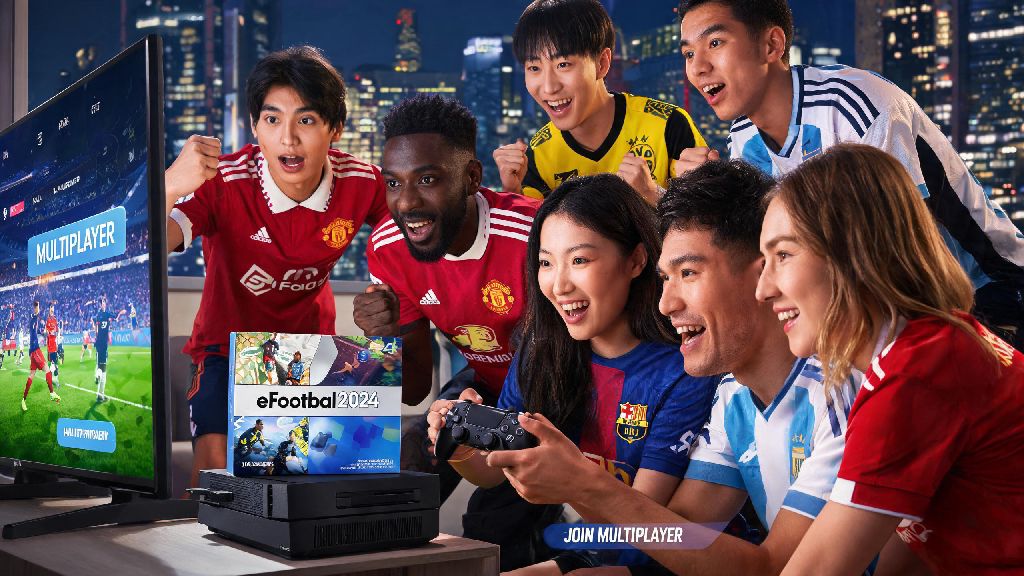
If you just downloaded eFootball 2024 after hearing all the hype about its updated squad rosters and improved gameplay physics, you’re probably eager to test your custom team against real players instead of predictable AI. A lot of new players get stuck navigating the clunky main menu trying to find multiplayer options, or run into random errors right when they’re ready to join a match. This guide breaks down exactly how to play multiplayer on eFootball 2024, with no confusing technical jargon, plus fixes for the most common issues I’ve run into over 120 hours of playtime this cycle. You’ll be kicking off against friends or random opponents in less than 10 minutes after following these steps.
Pre-Requisites to Access All eFootball 2024 Multiplayer Modes
Before you even try to join an online lobby, there are a few basic boxes you need to tick to avoid getting locked out. I learned this the hard way last month when I tried to join a friend’s lobby for 15 minutes, only to realize I’d skipped a required game update. Take two minutes to confirm you meet all these requirements first, and you’ll save yourself a lot of frustration later.
If you’re playing on mobile, you’ll also need to make sure you have at least 2GB of free RAM to run multiplayer matches smoothly, otherwise you’ll experience constant crashes mid-game. I also recommend closing all other background apps on your phone before launching a match to free up processing power.
Core Steps to Play Multiplayer on eFootball 2024 With Friends or Strangers
Once you’ve checked all the pre-requisites, accessing multiplayer modes is straightforward once you know where to look in the main menu. The game splits multiplayer into two core categories: private matches with people you know, and public matches against random players of similar skill levels.
To play with friends, first navigate to the Game Modes tab on the main menu, then select the Friend Match option. You can choose to create a private lobby, set a custom 4-digit password, and share that password with the friends you want to invite. You can adjust nearly every match setting before launching, including half length, injury toggles, offside rules, and even whether you allow custom squads or only use default national team rosters. If you want to team up with friends instead of playing against them, select the co-op 2v2 or 3v3 option when creating the lobby, and you can take on other groups of players together.
To play against random opponents, go back to the Game Modes tab and select Online Quick Match for casual unranked play, or eFootball League for competitive ranked play. For quick matches, you can select your preferred match type, and the game will match you with players of similar skill level in under 30 seconds in most regions. Ranked eFootball League matches will place you in a starting division based on your first 10 placement matches, and you’ll climb or fall divisions based on your win/loss record, with exclusive player card rewards for reaching higher divisions.
Don’t sleep on the co-op public match option if you want a more casual team experience. I’ve had a ton of fun teaming up with random players for 3v3 matches, and it’s a great way to practice your team play skills without the pressure of ranked matches.
Crossplay Settings for Multiplayer Matches Across Different Platforms
One of the best features of eFootball 2024 is its full crossplay support across all major platforms, including PS5, PS4, Xbox Series X/S, Xbox One, PC, and mobile. That means you can play with friends no matter what device they own, as long as you all have the latest game version installed.
Crossplay is enabled by default for all new players, but if you can’t find or join friends on other platforms, you can double check your settings to make sure it’s turned on. Go to the main Settings menu, select Online Settings, then toggle the Crossplay option to On if it’s disabled. When crossplay is on, you’ll be matched with players across all platforms, which cuts down on match wait times significantly, especially in less populated regions.
If you’re adding friends on a different platform, you’ll need to add them via their Konami ID instead of their platform gamertag. You can find your own Konami ID in the Profile section of the main menu, so make sure you share that with your cross-platform friends instead of your Xbox or PlayStation username. There’s a small catch to crossplay though: if you’re playing on mobile or a last-gen console, you might face players on newer hardware with lower input delay, which can put you at a small disadvantage in competitive ranked matches. If you notice you’re losing a lot of matches because of slower response times, you can turn crossplay off to only match with players on the same platform as you.
Common Multiplayer Issues and Quick Fixes to Avoid Match Interruptions
Even if you follow all the setup steps perfectly, you’ll probably run into a few common multiplayer bugs or errors at some point. Most of these have simple fixes that take less than a minute to apply, so you don’t have to sit through hours of troubleshooting to get back to playing.
The most common error is the “failed to connect to lobby” message that pops up when you try to join a friend’s game. This almost always happens because one of you has a strict NAT type. To fix this, enable UPnP in your router’s settings, or open port 9000 on your network to allow eFootball to connect directly to other players. If you’re on a public Wi-Fi network like a college dorm or coffee shop, you probably won’t be able to adjust router settings, so you’ll have to stick to public lobbies instead of private friend matches.
If you’re facing constant lag or stutter mid-match, turn off all background downloads on your device first. Even small app updates or cloud backups can eat up bandwidth and cause lag during matches. I also recommend turning off the in-game live commentary and reducing graphics settings slightly if you’re playing on PC or mobile, as that can cut down on frame drops during busy moments in the match.
If you get disconnected from a ranked match, you’ll get a temporary cooldown ban before you can join another ranked lobby. First-time disconnections only get a 10-minute ban, but repeated intentional disconnects will lead to bans lasting multiple days, so make sure your connection is stable before you join a ranked match. If you get a ban for a disconnection that wasn’t your fault, you can submit a support ticket to Konami to get it reversed, though response times can take a few days.
Once you get the hang of the menu navigation and basic settings, learning how to play multiplayer on eFootball 2024 is way simpler than it seems at first glance. Don’t be afraid to test out different modes, from casual co-op matches with friends to high-stakes ranked league play, to find what fits your playstyle best. Don’t get too discouraged if you lose your first few matches either — every top player started out as a beginner, and playing against real opponents is the fastest way to improve your skills. If you run into any rare bugs we didn’t cover here, you can check the official Konami eFootball Twitter account for real-time updates on ongoing server issues and patch releases.