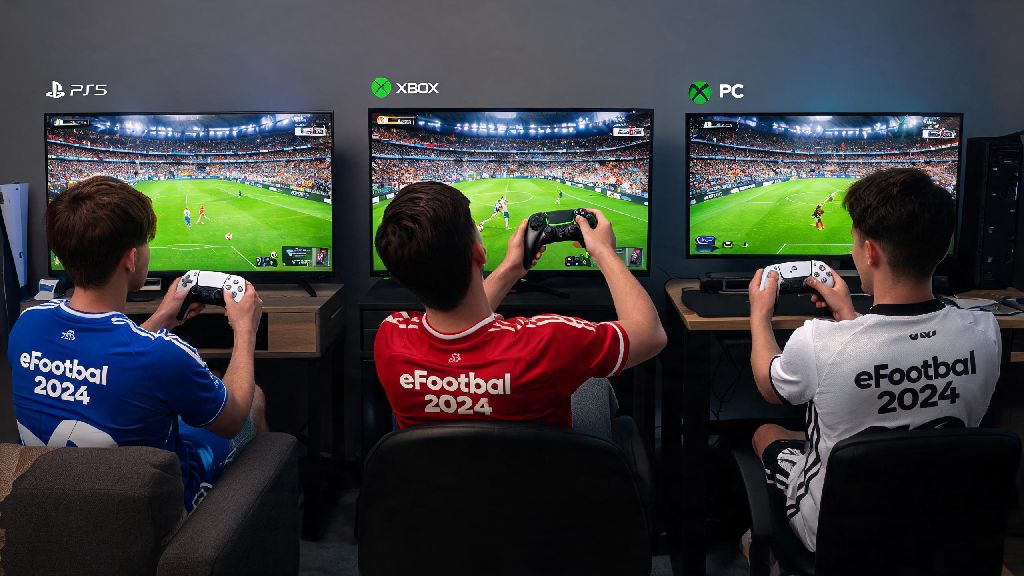
There’s nothing better than sitting down with a friend or family member for a casual football match, and eFootball 2024’s local multiplayer feature makes that easier than ever. But a lot of users get stuck navigating the game’s clunky menu layout, especially if they’re used to only playing online single player. If you’ve been searching for how to play 2 players on eFootball 2024 without dealing with confusing forum threads or outdated tutorials, this guide has everything you need. I’ve tested every setup across PS5, Xbox, PC and mobile over the past few months, so all the steps below are confirmed to work with the latest game update.
Pre-Setup Checks Before You Launch Your 2 Player Match
Before you even open eFootball 2024, there are a few quick checks you can run to avoid wasting time troubleshooting later. First, confirm you have controller compatibility for all your input devices, whether you’re using official console controllers, third-party Bluetooth pads, or a keyboard and mouse for PC. Second, make sure your copy of the game is fully updated, as older versions often have bugs that block multiple input devices from connecting at once.
You’ll also want to confirm you’re logged into a valid profile, though you don’t need an active internet connection for most local 2 player modes. Last month, I had three friends over and we spent 20 minutes fumbling through menus before I realized one of our third-party PS4 controllers wasn’t compatible with the PS5 version of the game, so I’ve included all the workarounds I tested that day to save you the hassle.
Here’s a quick list of everything you’ll need for a smooth setup:
You don’t need a PlayStation Plus or Xbox Live subscription for local play, which is a nice bonus if you let your online subscription lapse. The only exception is if you want to play 2 player co-op in online ranked matches, which does require an active online service subscription for consoles.
Step-by-Step Process to Play 2 Players on eFootball 2024 Across Devices
The exact setup process varies a little depending on what device you’re using, but all versions follow the same core logic of enabling local multiplayer and assigning player controls. For PS5, PS4 and Xbox consoles, start by launching the game and navigating to the main menu. Ignore the big “Play Online” button and scroll right until you find the local match mode option, which is hidden under the “Friendly Matches” tab for most regional versions of the game.
Once you select local match, you’ll see a prompt to add additional players. Just press any button on your second controller, and it will pop up as Player 2 on the player assignment screen. From there, you can both select your teams, adjust match settings like half length and difficulty, and jump right into the game. If you want to play on the same team against the AI, just move both player icons to the same team side on the assignment screen instead of opposite sides.
For PC users, you’ll need to do one extra step first: open the game settings menu and go to the “Controls” tab to assign each input device to a separate player profile. If you’re using a keyboard and one controller, make sure you don’t have both assigned to Player 1 by default, which is a common default setting that causes a lot of confusion. For mobile users, you can either connect two Bluetooth controllers to your phone or tablet, or enable split touch controls in the settings to let two people play on the same screen. The split touch option works best on larger tablets, as phone screens are usually too small for two people to control comfortably.
One important note: you can’t play 2 player local matches across different devices, like having one person on PS5 and another on PC. All players need to be on the same device for local multiplayer, as cross-play is only supported for online matches right now.
Fun 2 Player Game Modes to Try After You Set Up
Most people stick to basic 1v1 versus matches when they first set up local multiplayer, but eFootball 2024 has a ton of underrated 2 player modes that add a lot of variety. The most popular option for casual groups is the custom match rules mode, where you can set silly restrictions to make the game more fun. For example, you can set a rule that all goals have to be headers, or that you can only use players under 21 years old, or even turn off all fouls for a chaotic, no-rules match.
If you’d rather team up than play against each other, you can play co-op against the AI on the highest difficulty level, which is a great way to practice your teamwork before you jump into online co-op matches. You can also create a custom mini tournament with up to 8 teams, where you and your friend take turns controlling different teams to see who comes out on top. I played this with my brother last week, and we spent three hours working through a custom World Cup tournament, with him winning on a last-minute penalty in the final.
For more competitive players, you can also enable “ranked local” mode, which tracks your win/loss record against each other on your local device. It doesn’t count towards your online rank, but it’s a fun way to keep track of bragging rights over time. Just don’t forget to save your tournament progress if you’re playing a longer session, as the game won’t auto-save local tournament data by default.
Common 2 Player Setup Issues and Quick Fixes
Even if you follow all the steps perfectly, you might run into a few common issues that most eFootball 2024 users face with local multiplayer. The most common problem is a controller sync error, where the second controller won’t show up on the player assignment screen. If this happens, first turn the controller off and back on, then re-pair it to your device. If that doesn’t work, close the game completely and restart it, as the game sometimes fails to recognize new controllers that are connected after the game is already open.
Another common issue is that you might get an error message when trying to play with custom teams or edited players. That happens if one of your edited players has a corrupted file, so you can fix it by using default teams instead, or re-importing your custom player files. For mobile users, the most common issue is input lag when using two Bluetooth controllers at once. That’s usually caused by low Bluetooth signal, so try moving any other Bluetooth devices away from your phone or tablet, or switch to wired controllers if you have the right adapters.
One critical thing to watch out for: don’t try to use local 2 player setup in online random matches. The game’s anti-cheat system will flag this as account sharing, and you could get a temporary or permanent ban from online play. Local 2 player is only intended for offline friendly matches or private online co-op lobbies with people you invite, so stick to those modes to avoid issues.
Now that you know how to play 2 players on eFootball 2024, you don’t have to waste time scrolling through messy menus the next time you have friends over. The setup process only takes a minute or two once you know where to look, and the variety of game modes means you can play for hours without getting bored. Whether you’re playing casual matches with your family or competing for bragging rights with your friends, eFootball 2024’s local multiplayer is one of the most underrated features of the game, and it’s well worth taking the time to set up.