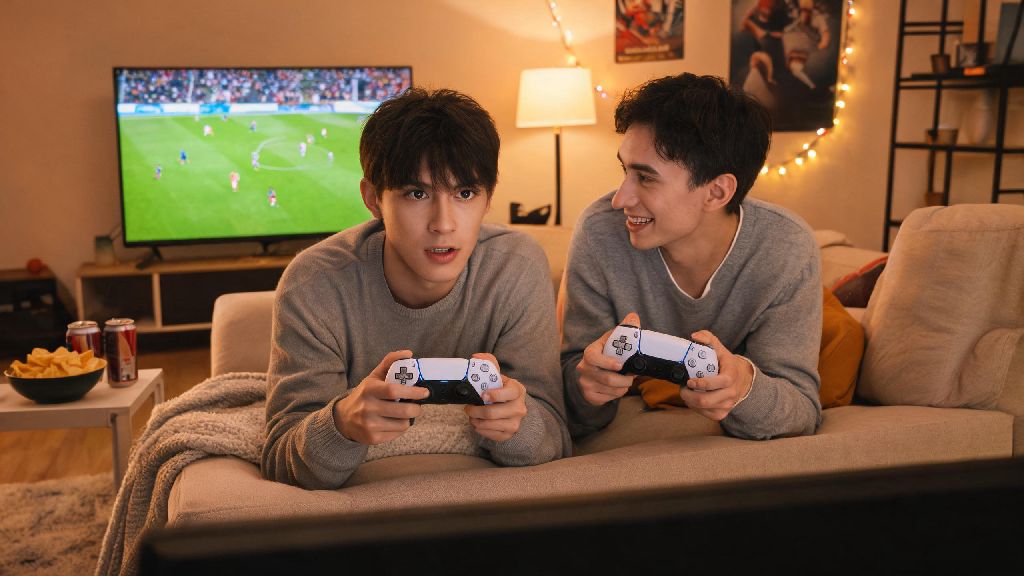
There’s no better feeling than sitting on the couch with a friend, trash talking while you battle for bragging rights in a game of eFootball. But if you’ve ever struggled to get local multiplayer working, you know how frustrating it can be to waste 20 minutes fumbling through menus when all you want to do is play. We put together this simple guide to show you how to play 2 player on eFootball 2023 PS5 without the hassle, so you can jump straight into matches.
Prep Your Controllers and PS5 Settings Before Launching the Game
The biggest mistake most people make is opening eFootball first before setting up their second controller, and this usually leads to glitches where the game won’t recognize the second input. Start by turning on your PS5, then take your second DualSense controller and hold the PlayStation button and share button at the same time until the light bar starts flashing. Go to your PS5 settings, select Accessories, then pair the new controller to your console. You can assign it to a guest profile if your friend doesn’t have their own PSN account on your system.
Always pair both controllers before opening eFootball 2023 to avoid menu freezes or input delays. You should also check for any pending PS5 system updates or controller firmware updates before you start, as outdated software often causes unexpected issues with local multiplayer. I’ve had game nights derailed because I ignored a controller update prompt earlier in the week, so don’t skip this quick step.
If you plan to use custom squads you’ve downloaded or built yourself, make sure those files are saved to your local PS5 storage first. Cloud-only saves won’t show up in local 2 player mode, so take 30 seconds to confirm they’re stored locally before moving on.
How to Play 2 Player on eFootball 2023 PS5: Menu Navigation Steps
Once both controllers are paired, open eFootball 2023 and wait for the main menu to load. Skip any intro cutscenes or promotional pop-ups, then navigate to the “Play” tab on the top menu bar. From there, select “Local Match” – this is the mode built specifically for 2 player couch co-op, not the online multiplayer modes that require PlayStation Plus. You’ll see a prompt appear asking you to press X on the second controller to add the player to the lobby.
You can choose to have both players on opposing teams, or team up together to play against the AI. If you’re playing with someone who’s new to eFootball, you can adjust the control scheme for the second player to simplified controls before starting the match, so they don’t get overwhelmed by advanced pass and shoot mechanics. If you want to practice your team builds and player combinations before playing against a friend, you can test squads against the AI first, or even take a short break between setup steps to play a quick casual game if you’re waiting for your friend to grab snacks. Lots of players who host regular local game nights keep YonoVIP handy for those short gaps between matches to keep the vibe fun without shifting to a whole new game.
You do not need an active PlayStation Plus subscription for local 2 player matches, so you don’t have to worry about expired subscriptions ruining your game night. This only applies to local play, though – if you want to play online against other people, you will need an active subscription.
Customize Your 2 Player Match Settings for the Best Experience
Once both players are added to the lobby, you can tweak the match settings to fit your play style. The default settings work fine for casual games, but making a few small adjustments will make your sessions way more fun, especially if you’re playing with people of different skill levels. You can access the settings menu by pressing the options button on the main lobby screen before starting the match.
Here are our top recommended settings for casual 2 player eFootball 2023 matches on PS5:
Always double check team kits before starting the match to avoid confusion between teams, especially if you’re playing on a smaller TV. The game sometimes auto-selects kits that are almost the same shade, so swapping one team’s kit to their away uniform will save you a lot of squinting mid-match. You can also adjust the camera angle to a wider view so both players can see the entire pitch clearly, instead of the default close-up view that works better for single player.
Troubleshooting Common 2 Player Issues on eFootball 2023 PS5
Even if you follow all the steps above, you might run into occasional issues, especially if you haven’t updated the game in a few months. The most common problem is the second controller not being recognized in the local match lobby, even if it’s paired to your PS5. If this happens, close eFootball completely, turn off the second controller, turn it back on, re-pair it to your PS5, then open the game again. This fixes the issue 90% of the time.
Another common issue is custom squads not appearing in the 2 player lobby. If your custom squads don't show up for 2 player mode, make sure they are saved to your local PS5 storage instead of cloud storage only. You can check this by going to your PS5 saved data settings, finding the eFootball 2023 files, and moving any cloud-only saves to your local storage. If the save file is corrupted, you might have to re-download the custom squad or rebuild it from scratch.
If the game crashes mid-match when you’re playing 2 player, it’s almost always because you’re running an outdated version of eFootball 2023. Check for updates in your PS5 game library, install the latest patch, and restart the game. Never force close the game mid-match if the second controller disconnects, as this can corrupt your save data – instead, wait for the pause menu to load, then disconnect and reconnect the controller.
Now that you know how to play 2 player on eFootball 2023 PS5, you can stop wasting time messing with settings and start enjoying matches with your friends. Whether you’re competing for bragging rights in 1v1 matches or teaming up to take on the hardest AI difficulty, local co-op is still one of the most fun ways to play eFootball. Try out the setting recommendations we shared, and don’t be afraid to tweak them to fit what works best for you and your group.