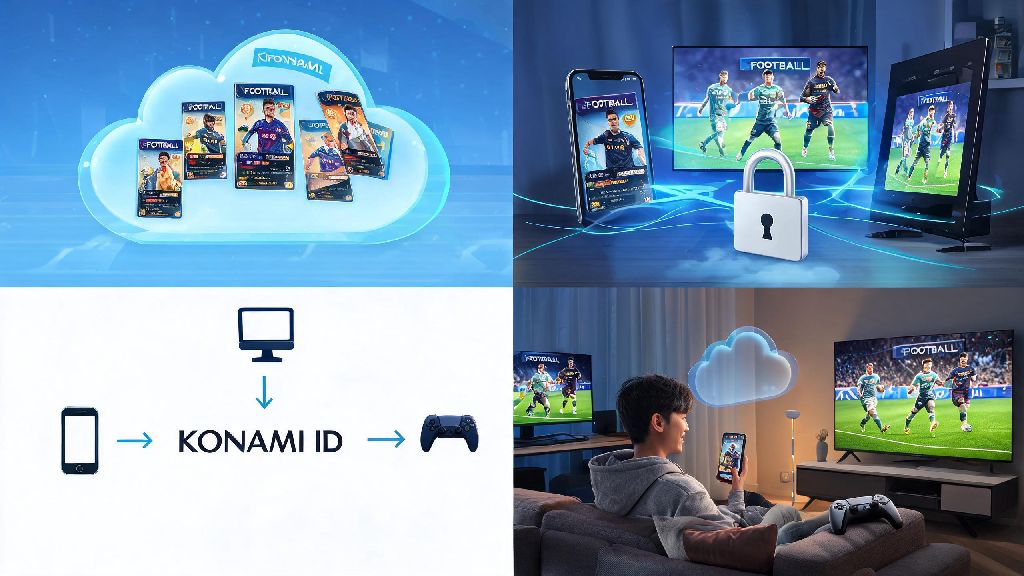
If you’ve ever lost weeks of grinding for rare player cards or your entire ranked match progress after switching phones or reinstalling eFootball, you know how frustrating that can be. The simplest way to avoid that headache is to figure out how to link eFootball to Konami ID, a free account system that keeps all your game data stored securely on Konami’s cloud servers. I’ve linked three different eFootball accounts across my mobile, PC, and console over the last two years, so I’ll walk you through every step, common mistakes to skip, and perks you might not know you get for linking.
Step-by-Step Process to Link eFootball to Konami ID
The process works almost identically across mobile, PC, and console versions of eFootball, with only small differences in menu layout. Always update your eFootball app to the latest version before starting the linking process to avoid compatibility errors that can break the sync. You don’t need to pay for any premium service to create or link a Konami ID, it’s 100% free for all eFootball players.
First, open eFootball and navigate to the Extras menu, represented by the three-line icon in the top right corner of the home screen. Scroll down until you see the “Account” tab, then select “Link Account” from the submenu. You’ll see a list of linking options including social media platforms and Konami ID, so select the Konami ID option. If you already have an existing Konami ID, enter your registered email or phone number and password to proceed. If you don’t have an ID yet, you can create one directly from this screen by entering your email, creating a password, and verifying your email address through the confirmation link Konami sends you.
Once you enter your Konami ID credentials, you’ll see a pop-up asking you to confirm the link. Never select “use device data” if you want to keep your existing cloud saved progress—this option will overwrite the data stored on your Konami ID with the local data on your current device. After you confirm, the game will sync for 10 to 30 seconds, then prompt you to restart. When you open the game again, your account is fully linked, and all progress will automatically back up to Konami’s cloud every time you connect to the internet.
Key Benefits of Linking Your eFootball Account to Konami ID
A lot of players skip linking their accounts because they think it’s only useful for cross-device play, but there are way more perks that make the 5-minute process worth it. I only linked my first account because I switched from an old Android to an iPhone a few years ago, but I’ve since linked all my accounts because the rewards alone make it worth it.
I got 300 free myClub coins last month just for linking my secondary mobile account, which is enough for one premium player pack that usually costs $4.99. Most seasonal event rewards for eFootball are only claimable if you have a linked Konami ID, so you’re missing out on free items every time you play without linking. You can still link social media accounts as extra backup, but Konami ID is the most reliable option, since you don’t risk losing access to your eFootball account if your social media gets banned or suspended.
Common Linking Errors and How to Fix Them Fast
I’ve run into almost every possible linking error while helping my friends set up their accounts, so most issues have simple fixes that don’t require contacting support. The most common error people see is the “Konami ID not found” pop-up, which almost always happens for one of two reasons: you entered the wrong email or phone number, or your Konami ID region doesn’t match your eFootball account region. Double check that your Konami ID region matches your eFootball account region before attempting to link, since Konami IDs are region-locked and can’t be linked to accounts from other parts of the world.
Another common error is the “data conflict” pop-up, which appears if you have existing progress saved both on your current device and on the Konami ID you’re trying to link. If you’re not sure which save file is more recent, you can log into the official Konami ID website to check the last sync date for the eFootball data stored on your account. Don’t rush this step, because choosing the wrong option will permanently delete the save file you don’t select, and Konami support can’t recover it for you.
If the linking process fails mid-sync, it’s almost always a problem with your internet connection. Switch to a stable Wi-Fi network instead of mobile data, and make sure you don’t close the eFootball app while the sync is in progress. If you keep getting the same error after three attempts, clear the app cache (for mobile) or verify game files (for PC/console) before trying again. For permanent errors, you can contact Konami support with your unique eFootball user ID, and they usually respond within 24 hours to resolve account linking issues.
Best Practices to Keep Your Linked Konami ID and eFootball Account Secure
Once you link your account, there are a few simple steps you can take to make sure your data stays safe and you don’t get locked out of your account. Enable two-factor authentication for your Konami ID immediately after linking to prevent unauthorized access. Konami supports both SMS and authenticator app 2FA, and I recommend using the authenticator app option, since it’s more secure than SMS and works even if you don’t have cell service.
Never share your Konami ID credentials with anyone, even people offering free myClub coins or rare player cards in exchange for access. This is one of the most common scams in the eFootball community, and scammers will usually sell all your players and waste all your coins within minutes of getting access to your account. You also shouldn’t link your Konami ID to eFootball accounts on public or shared devices, because you might forget to log out, and other people can access your account without your permission.
If you ever need to unlink your Konami ID from your eFootball account, you can do that through the same Account Link menu you used to link it. Just note that you can only unlink an account once every 6 months, so make sure you’re certain before you go through with the process. Unlinking won’t delete your progress from either your device or your Konami ID, it just stops the sync between the two.
At the end of the day, taking 5 minutes to figure out how to link eFootball to Konami ID is one of the best things you can do to protect all the time and effort you put into the game. You don’t have to deal with lost progress, you get free exclusive rewards, and you can switch between devices whenever you want without any hassle. If you run into any snags during the process that I didn’t cover here, drop a comment below and I’ll help you work through it.