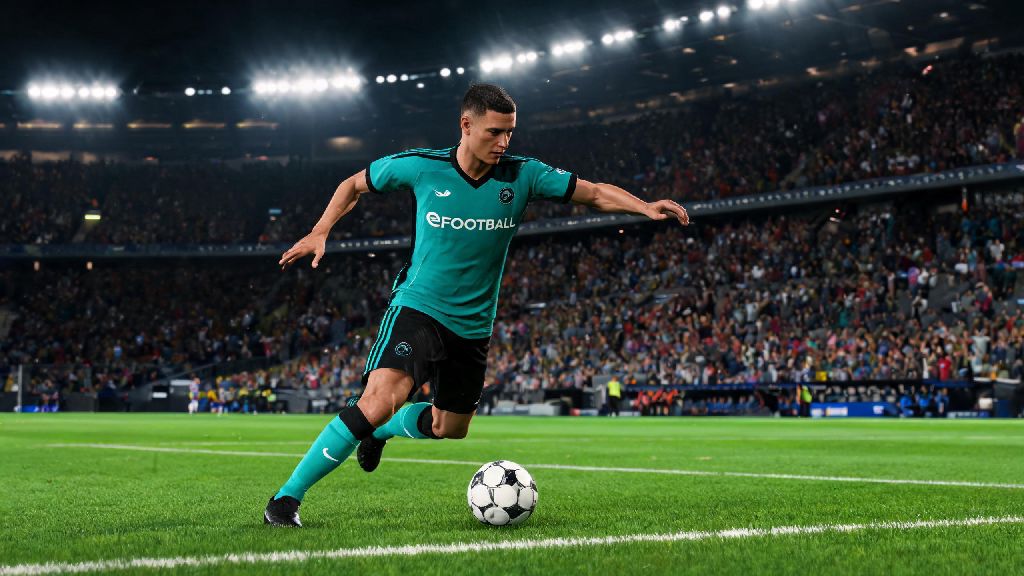
There’s nothing more frustrating than loading into a ranked eFootball match and realizing your team’s default kit blends almost perfectly with the opponent’s. You squint to tell your left winger apart from their fullback, mispass three times in the first 10 minutes, and throw away a win you deserved. If that sounds familiar, knowing how to change your kit in eFootball is a tiny, game-changing skill you’ll wish you learned sooner. It takes less than 10 seconds to adjust pre-match, and it opens up options to rep your favorite club, show off custom designs, or just avoid the annoying kit clash that ruins your flow. I once lost a crucial Division 1 promotion match because I skipped this step, so I can promise you it’s worth the extra few seconds of effort every time you queue up for a game.
How to Change Your Kit in eFootball Across All Major Platforms
The core process for switching kits is similar across every device, but there are small differences depending on whether you’re playing on console, PC, or mobile. No matter what you use, always select your kit before confirming your match lineup – you can’t make changes once the match loads in, even if you notice a clash right as kickoff starts.
For PS5 and Xbox players, navigate to the pre-match lobby screen after you select your team. Look for the small jersey icon in the bottom right corner of the screen, tap X (PS) or A (Xbox) to open the kit menu. You’ll see all home, away, third and special unlockable kits you own for your selected team. Scroll through the options, and you’ll see a live preview of your team wearing the kit on the left side of the screen. Once you pick one, back out to the lobby and your selection will save automatically.
PC players follow almost the same steps, but you’ll use your mouse to click the jersey icon, or press the default K keybind to pull up the kit menu directly. If you’ve modified your keybinds, you can check the control settings menu to find the exact shortcut for kit selection. Steam Deck users will follow the console steps, using the A button to select the jersey icon from the pre-match lobby.
Mobile players have the easiest process of all. Once you select your team for a match, tap the small jersey icon that pops up next to your team name above the lineup card. Swipe left or right to browse available kits, tap the one you want, and it will apply instantly. Just make sure you don’t tap the “confirm lineup” button before you make your selection, or you’ll be stuck with the default kit for the whole match.
How to Unlock and Use Custom Kits in eFootball
If you’re bored of the default official team kits, you can upload custom designs for almost any team in the game, or download community-made designs from other players. Custom kits let you rep your local Sunday league team, make a silly design to mess with your friends in casual matches, or create a unique kit for your myClub squad. Custom kits only show up for you in casual matches unless your opponent also has the same design downloaded, so don’t worry about confusing other players in ranked modes.
Before you upload a custom kit, you need to make sure your design meets the game’s official requirements. If your file doesn’t fit these rules, it will be rejected automatically:
To upload a custom kit, open the eFootball main menu, navigate to the “Edit Teams” tab, select the team you want to modify, and choose “Import Custom Kit”. You can upload separate designs for home, away, and third kits, plus custom goalkeeper kits if you want. Once you import the files, you’ll be able to select the custom kit from the pre-match lobby just like any official kit. Ranked match modes restrict custom kit use to prevent unfair advantages or offensive content, so you’ll only be able to use them in friendly matches, co-op games, and offline modes.
Fixes for Common Kit Change Glitches in eFootball
Even if you follow all the steps correctly, you might run into occasional glitches that stop your kit selection from saving or loading properly. These issues are super common, especially after a new title update drops, and most of them have simple fixes you can try in less than a minute.
The most common glitch is your selected kit reverting to the default when the match loads. This usually happens if your game cache is corrupted, or if you have a slow internet connection that doesn’t sync your selection to the server. For mobile users, clear your eFootball cache before restarting the game – you can do this from your device’s app settings menu, and you won’t lose any of your saved progress or unlocks. For console and PC users, make sure you have the latest title update installed, as old patches often have kit sync bugs that get fixed in later updates.
Another common issue is custom kits not showing up in your kit menu after you upload them. This almost always happens because your file didn’t meet the size or format requirements. Double check that your images are 1024x1024 PNGs with no transparency, and try re-uploading them. If they still don’t show up, try renaming the file to something simple with no special characters, as symbols in the file name can cause the upload to fail.
If you’re getting a “kit clash” error even after you switched your kit, it’s probably because your selected kit still has a similar primary color to the opponent’s kit. The game’s auto-detection system flags kits that have more than 60% color overlap, so try picking a kit with a completely different primary color to fix the error. If you’re playing in an online tournament, the tournament host might have specific kit rules that restrict certain designs, so check the tournament rules before you select your kit.
Smart Kit Selection Tips to Improve Your Gameplay
Kit selection isn’t just about looking cool or repping your favorite team – it can actually have a small but measurable impact on your gameplay. The right kit makes it easier to spot your players across the pitch, cut down on mispasses, and react faster to loose balls. I’ve tested this for hundreds of matches, and I consistently have a 5-10% higher pass completion rate when I pick a high-contrast kit that stands out against the pitch and the opponent’s team.
Light colored kits work best for night matches on dark green pitches, while darker kits stand out more during daytime matches with bright stadium lighting. Avoid kits that have similar colors to the default match ball – white and black kits can blend in with the standard white or black match balls, making it harder to track passes and shots at a glance. If you’re playing on a pitch with a lighter green or artificial turf surface, pick a darker kit with bright accents to make your players pop.
If you’re playing against a human opponent, you can also use kit selection as a small psychological trick. Pick a kit that’s similar in color to the goal net if you’re playing an attacking style, and your opponent might have a harder time tracking your shots as they fly towards the goal. This is a tiny edge, but it can make a difference in close matches that come down to one or two goals.
Don’t sleep on goalkeeper kit selection either. Pick a goalkeeper kit that’s completely different from both your outfield players and the opponent’s outfield players, so you can easily spot your keeper when they come off their line to collect a through ball. I used to pick keeper kits that matched my outfield kits, and I lost count of how many times I accidentally passed to my keeper when I meant to pass to my center back. Switching to a high-contrast keeper kit fixed that mistake almost immediately.
At the end of the day, learning how to change your kit in eFootball is a simple skill that takes less than five minutes to master, but it pays off every single time you play. Whether you’re fixing a frustrating kit clash, showing off a custom design you spent hours making, or picking a high-contrast kit to improve your pass accuracy, those small pre-match adjustments add up to a better, more enjoyable gaming experience. Next time you queue up for a match, don’t just click through the pre-match screens without checking your kit – that small extra step could be the difference between winning and losing your next promotion match.