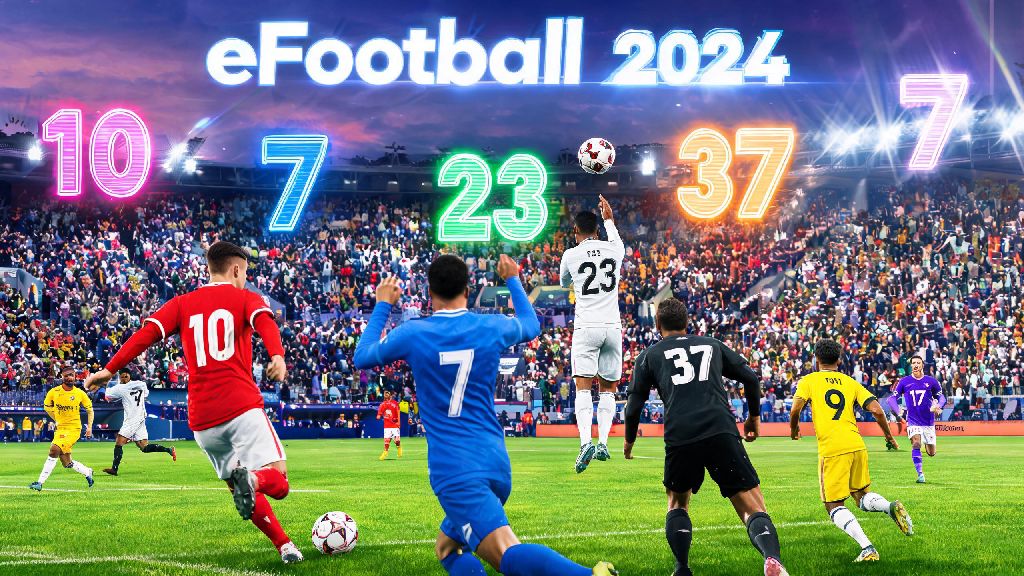
If you’ve ever pulled your favorite legendary player in a Dream Team pack, only to see him assigned a random number 37 that has nothing to do with his iconic on-pitch identity, you know how frustrating that small detail can be. It takes you out of the immersion, right? That’s where knowing how to change jersey number in eFootball 2024 comes in. It’s a tiny customization, but it makes a huge difference in making your squad feel like it’s actually yours, not just a random collection of meta players. I remember my first time trying to do this when the game launched, I clicked through every menu for 20 minutes before I stumbled on the right option, so I built this step-by-step guide to save you that same headache. Whether you’re playing competitive Dream Team, a career in Master League, or just casual offline matches with friends, we’ve got you covered.
How to Change Jersey Number in eFootball 2024 for Every Game Mode
The process for editing jersey numbers changes slightly depending on which game mode you’re playing, so we’ve broken down steps for the three most popular modes below. Before you get started, there are a few universal prerequisites you’ll need to meet to make edits:
For Dream Team, go to the Squad tab first from the main home screen. Scroll to the player you want to edit, select them, and choose the Player Details option from the pop-up menu. You’ll see an Edit Jersey Number button near the bottom of the list; select it, then pick from available numbers. Confirm your choice, and the change will apply immediately to all your upcoming matches. For Master League, the path is slightly different: head to the Team Management menu from your Master League home screen, select Squad, then click on the player you want to adjust. Choose Edit Player, then Jersey Number, and make your selection. For casual offline friendlies, you can edit numbers right before the match starts in the Match Settings menu, under Edit Squad. These changes only apply to that specific match, so you don’t have to worry about messing up your permanent squad settings.
Common Restrictions You Might Face When Editing Jersey Numbers
It’s not uncommon to run into greyed-out buttons or error messages when you try to edit numbers, and most of the time it’s due to a built-in game restriction, not a bug. The most common restriction is number availability: you can only assign numbers 1 through 99, and if another player on your active squad already has the number you want, the game will block you from using it until you reassign that number to someone else. I ran into this last month when I signed Haaland for my Dream Team; my backup striker already had number 9, so I had to move him to number 19 before I could give Haaland his iconic 9.
Loaned players are another common pain point. Most event loan players have locked player data, which means you can’t change their number, their position, or any of their custom settings until their loan period ends, or you sign them permanently. Licensed national teams and some club teams also have locked jersey numbers to match their real-world current squad assignments, so if you’re playing with the official France or Brazil national team, you won’t be able to adjust their numbers at all. Competitive matchday locks are another frequent issue: if you’ve already registered your squad for an upcoming ranked Dream Team matchday, you won’t be able to edit any jersey numbers until the full matchday cycle ends, usually 24 to 48 hours after it starts. This rule is in place to prevent confusion for opponents who scout your squad ahead of matches.
Fixes for When You Can't Change a Player's Jersey Number
If you’re hitting a wall trying to edit a number, these quick fixes will solve 99% of common issues. First, if the number you want is marked as unavailable, head to the player who currently has that number first, assign them a different unused number, then go back to your target player. The number will now show up as available for you to select. If the edit button is greyed out for a loan player, you only have two options: wait until their loan expires, or sign them permanently if that option is available. There’s no workaround for locked loan player data, so don’t waste time clicking through menus trying to find a hack.
If you’re locked out due to a competitive matchday, wait until the entire matchday cycle concludes before trying to make edits. Once all matches for that event are finished, your squad editing permissions will be restored automatically. If you’re getting a random error message when you try to save your changes, restart the game. I’ve run into this glitch a handful of times when I’ve made more than 5 or 6 squad edits in a single session, and a quick restart always fixes the issue immediately. If none of these fixes work, check the official eFootball social media channels to see if there’s an ongoing server issue, as server outages sometimes block all squad edit functions temporarily.
Pro Tips for Customizing Your Squad's Jersey Numbers Like a Pro
Changing jersey numbers isn’t just about matching a player’s real-world identity; you can also use this customization to make your gameplay easier and more immersive. First, reserve number 1 for your first-choice goalkeeper. That’s a standard football tradition, but it also makes it much easier to spot your keeper quickly in squad menus and during pre-match selection. If you play a lot of competitive matches, assign lower numbers to your most used starting 11 players. You’ll be able to find and select them much faster when you’re making last-minute squad changes before a ranked match, which saves you valuable time when you’re up against the pre-match clock.
If you’re a casual player who cares more about immersion than competitive edge, match your players’ numbers to their most iconic career stints. For example, give Messi number 10, Cristiano Ronaldo number 7, and Bellingham number 5 to make your squad feel like a collection of the sport’s biggest legends. You don’t have to stick to real-world conventions, though; I have a friend who assigns all his attacking players even numbers and all his defensive players odd numbers, which makes it easier for him to adjust his tactics mid-match. Remember that changing jersey numbers doesn’t impact player stats at all, so you can swap numbers as often as you want with no penalty to your squad’s performance. There’s no limit to how many times you can edit numbers, so feel free to experiment until you find a setup that works for you.
Small customizations like this might seem trivial at first, but they go a long way in making your eFootball experience feel personal. Now that you know how to change jersey number in eFootball 2024, you can stop settling for random assigned numbers and build a squad that looks and feels exactly the way you want it to. I recently redid my entire Dream Team’s numbers to match the 2009 Barcelona squad, and it made playing with them so much more fun, even when I’m losing ranked matches to meta squads. If you run into any weird issues I didn’t cover here, drop a note in the comments and I’ll help you troubleshoot.