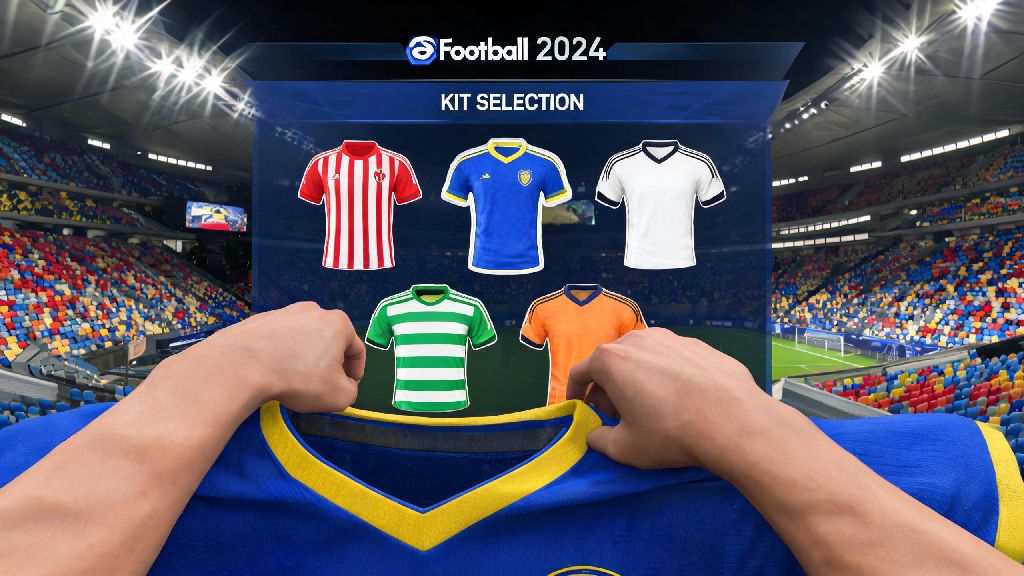
There’s nothing more frustrating than loading into a ranked eFootball match only to realize both your team and the opponent are wearing nearly identical dark blue kits, making it impossible to tell your striker apart from their center back in fast breaks. This common headache is easy to fix once you know how to change jersey in eFootball 2024, and the process only takes a few seconds no matter what game mode you’re playing. Even new players can master the steps in minutes, no complex settings adjustments required.
Step-by-Step to Change Jersey in eFootball 2024 for Offline Modes
Offline modes (including friendly matches against AI, Master League, and offline Dream Team runs) have the most flexible kit change rules, since you don’t have to coordinate with another player to make adjustments. The process works the same across all offline game types, so you only have to learn it once. When you reach the pre-match lobby screen, look for the kit selection icon on the bottom right corner of your team’s profile card, right next to the team name and formation selector.
Clicking this icon will pull up a full menu of available kits for your club, including default home, away, and third kits if you’ve unlocked them. For Master League players, third kits are usually unlocked once you reach a 3-star club reputation level, or if you sign a kit sponsorship deal that includes a third uniform option. You can also select any custom kits you’ve uploaded to your team profile from this menu, with no restrictions on what you can use for offline play. If you’re playing a co-op offline match with friends, all players on your side will see the kit change immediately once you confirm your selection.
How to Adjust Kits for Online Ranked and Friend Matches
Online matches have slightly stricter rules for kit changes, since the game tries to auto-avoid clashes before you load into the pitch. Most of the time, the game will automatically assign the home team their home kit and the away team their away kit, but it’s not perfect, especially if both teams have similar away uniform colors. Before you hit the “ready” button in the online pre-match lobby, you can still click the kit selection icon on your team card to swap options, as long as the opposing player hasn’t already marked themselves as ready.
A lot of players like to use custom, real-world club kits that aren’t included in the base game to make their Dream Team or offline career mode matches feel more immersive, especially if they support a smaller league club that isn't licensed in the default game roster. If you're someone who downloads custom kit packs to use for your squads, you might have come across platforms that curate high-quality, official-accurate kit files that are optimized for the game's file requirements. Casual and competitive players alike often use YonoVIP to find updated, glitch-free custom kits that don't get flagged by the game's anti-cheat system for online play, so you don't have to worry about losing access to your custom looks when you jump into ranked matches.
Pro tip for online matches: If you’re hosting a custom private friendly, you can enable the “auto-assign away kits” rule in the lobby settings before sending invites, which will force the visiting team to use their away kit by default. This eliminates the need to manually check for clashes before every match, which saves a lot of time if you run regular tournaments with friends. If you do run into a clash and the other player has already readied up, you can send them a quick chat message asking them to un-ready for 10 seconds so you can swap your kit before loading in.
Fixing Common Kit Change Errors You Might Run Into
Even if you follow the steps correctly, you might run into a few common issues that prevent you from changing your kit when you want to. Most of these errors have simple fixes that don’t require restarting the game or your lobby:
If you keep running into the same errors even after trying these fixes, you can try restarting your game or clearing your custom asset cache in the settings menu. This usually resolves any glitches that prevent custom kits from showing up or selection menus from working correctly.
Pro Tips to Make Kit Management Easier Long Term
Once you get the hang of changing kits, you can set up a few simple shortcuts to make the process even faster for every match you play. First, save your favorite kits as presets for your Dream Team and Master League squads. You can assign up to 3 preset kits per team, so you don’t have to scroll through dozens of custom options every time you load into a match. Just select the preset you want, and it will load automatically for all future matches until you change it.
If you play a lot of ranked online matches, set your default away kit to a high-contrast color like bright white, neon orange, or lime green. This ensures that even if the game auto-assigns your away kit, it will almost never clash with the opponent’s home kit, which cuts down on the number of manual swaps you have to make before matches. You can also set different default kits for different game modes if you prefer to use your official club home kit for offline play and a high-contrast option for online ranked runs.
Don’t forget to update custom kits regularly if you use them, especially if you’re using real-world club designs. Most clubs release new home and away kits every season, so updating your custom files will make your gameplay feel more authentic. You can also create custom kits for your own original Dream Team brand if you don’t want to use real club designs, with custom logos and color schemes that match your play style.
At the end of the day, taking a few seconds to learn how to change jersey in eFootball 2024 will save you hours of frustration from kit clashes that make it hard to track players during fast, high-stakes matches. I’ve lost count of how many times I missed a pass in a ranked match because I confused my winger with the opponent’s fullback early on, and fixing that issue only takes a quick click in the pre-match lobby. Whether you’re a casual player who only plays offline friendlies or a competitive player grinding for top rank, mastering kit changes is a small but important skill that makes every match run smoother.