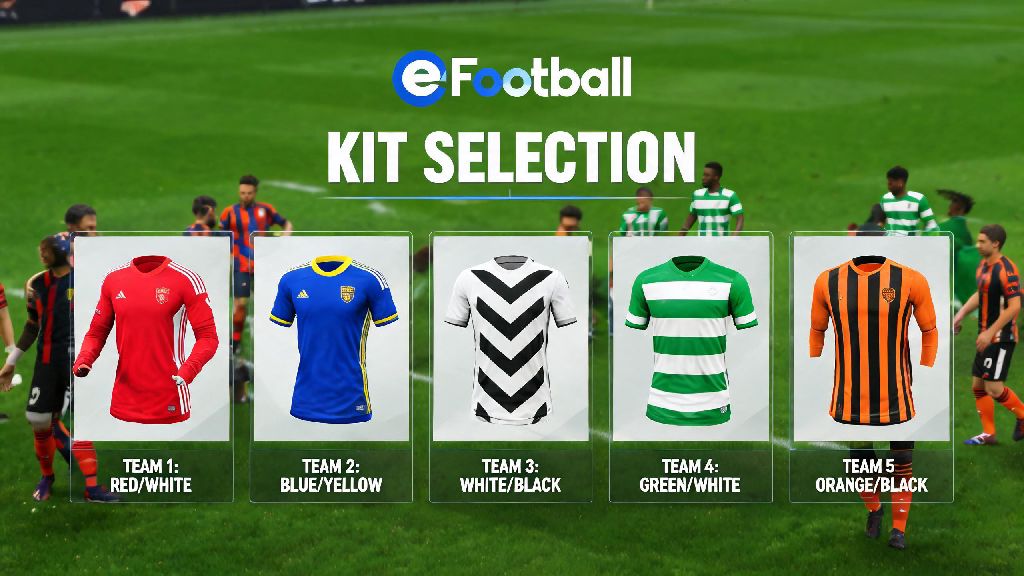
There’s nothing more frustrating than loading into an eFootball online head-to-head match only to realize both teams are wearing near-identical dark kits, making it impossible to tell your midfielders apart from the opposition mid-counter. If you’ve ever fumbled through menus mid-warmup trying to swap your kit last minute, you’re not alone. We’ve put together this full walkthrough to cover how to change jersey in eFootball for every game mode, plus pro tips to avoid kit clashes entirely. Whether you want to rep your favorite club’s third kit or show off a custom design you unlocked, these steps work across console, PC, and mobile versions of the game.
How to Change Jersey in eFootball for Offline and Friendly Matches
Offline game modes have the most flexible jersey selection rules, so you can experiment with different designs as much as you want without restrictions. When you’re in the pre-match lobby for a friendly, Master League match, or offline cup game, look for the kit selection icon usually on the left side of the screen, below your squad name. Click or tap that icon to pull up your full library of unlocked kits, including home, away, third, and limited-edition event designs.
For Master League players, you can also change your team’s default jersey mid-season from the club management menu, if you want to switch to a third kit specifically for cup matches to build more immersion. On mobile, the kit selection icon is hidden by default to save screen space, so you’ll need to tap the three-dot menu in the top right corner of the pre-match screen to access it. Unlike ranked modes, both players in a private friendly can adjust their jerseys independently, so you don’t have to worry about overriding your friend’s chosen design when you make a change.
Steps to Swap Kits for Ranked Online eFootball Matches
Ranked online modes have slightly stricter rules for jersey changes to reduce delays and unfair advantages, but the process is still straightforward. When you first enter a ranked match lobby, the game will automatically assign home and away kits to both teams to minimize the risk of color clashes. You’ll have a 30-second window before the warmup phase ends to adjust your selection if the assigned kit is still too similar to your opponent’s.
You can only change to your pre-selected alternate kits in ranked mode, so you won’t be able to access your full kit library mid-lobby. That’s why it’s critical to set 2 to 3 alternate kits with completely different color palettes (one light, one dark, one bright neon for example) in your squad profile ahead of time. If you’re playing in the eFootball Champions Cup mode, kit selection locks 1 minute before the match starts, so make sure you adjust your choice as soon as you enter the lobby to avoid being stuck with a clashing kit. Once the warmup phase starts, you won’t be able to make any further changes to your jersey for the rest of the match.
How to Set Permanent Custom Jerseys for Your MyClub Squad
If you use the same jersey for most of your MyClub matches, you can set it as your default to skip the selection process every time you load a game. First, navigate to the MyClub home screen, select Squad Settings, then choose the Kit tab from the top menu. From there, you can assign your preferred home, away, and third kits, and even set a custom captain’s armband if you have one unlocked from events. Once you save these settings, you won’t have to go through the full process of how to change jersey in eFootball every time you load a MyClub match.
Limited-edition event kits, like those from collaboration events with real leagues or streetwear brands, are only available for a limited time, so make sure to set them as your default before the event ends if you want to keep using them. A lot of players make avoidable mistakes when customizing their kits, so we’ve put together a quick list of pitfalls to skip:
If you have multiple custom kit designs uploaded, you can sort them by rarity or event to find your favorite options faster, instead of scrolling through pages of default club kits every time you want to make a change. You can also set different default kits for different competition types, like one for league matches and one for cup matches, if you want to keep your gameplay experience varied.
Troubleshooting Common Jersey Change Errors in eFootball
Even if you follow all the steps correctly, you might run into occasional glitches or restrictions that stop you from changing your jersey. The most common issue is the greyed-out kit selection menu, which usually appears for two reasons. First, you might be in a competitive tournament mode where kit selections are locked to prevent players from wasting time adjusting settings right before kickoff. Second, you might have already used your one allowed jersey change in the pre-match lobby, so the menu locks to prevent further delays.
If your kit menu is greyed out in a casual match, it’s usually a minor bug that you can fix by backing out to the main menu and reloading the match lobby, no need to restart the entire game. Another common issue is custom user-uploaded kits not showing up for your opponent in online matches. Custom user-uploaded kits are only visible to you in online matches, your opponent will see the default kit for your selected club instead, to prevent inappropriate or offensive designs from being shown to other players. If you want other players to see your custom kit, you have to use official eFootball event kits that are available to all users, not user-uploaded designs.
For players on older console generations like PS4 and Xbox One, kit loading times can be slower, so wait 10 to 15 seconds after opening the kit menu for all your unlocked designs to show up before trying to select one. If you’re playing on mobile and the kit menu won’t load at all, try closing any background apps that are using up RAM, as that’s the most common cause of menu glitches on mobile devices.
At the end of the day, swapping your kit is a small change that can make a huge difference to your gameplay experience, especially if you struggle with kit clashes during fast matches. Take 10 minutes to set up your preferred kit rotation in your squad profile next time you log in, and you won’t have to fumble through menus mid-warmup ever again. Once you know how to change jersey in eFootball for every game mode, you can show off your favorite designs, avoid confusing your players with the opposition, and make every match feel a little more personal. If you have a go-to kit combination you love using, drop it in the comments below to share with other players.