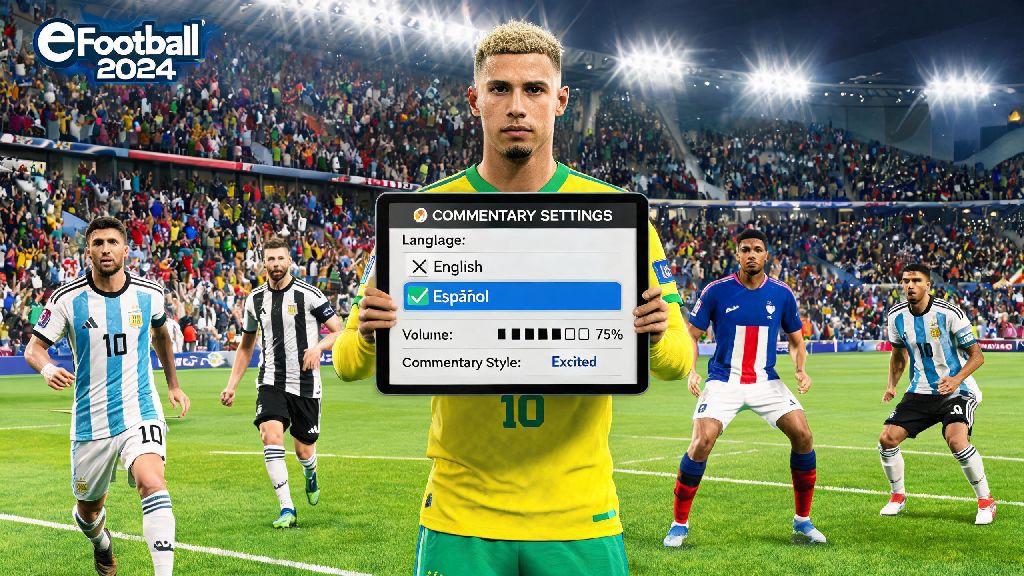
If you’ve ever booted up eFootball 2024 after traveling, switching devices, or installing a regional update only to hear commentary in a language you don’t understand, you know how much it ruins the match experience. I dealt with this exact issue last year when I downloaded the game on a temporary PSN account while visiting family in Mexico, and I spent three weeks fumbling through settings trying to switch the commentary back to English before I figured out the correct process. This guide breaks down exactly how to change commentary language in eFootball 2024, with steps for every platform, fixes for common glitches, and extra tips to tweak your audio setup exactly how you like it.
How to Change Commentary Language in eFootball 2024 for All Platforms
The process for switching commentary language is mostly consistent across all supported devices, but there are small platform-specific differences you need to know to avoid mistakes. Before you start, make sure you take care of these pre-requisites to prevent failed downloads or setting resets:
Once you’ve taken care of those steps, you can follow the platform-specific process below to make the switch. This whole process of how to change commentary language in eFootball 2024 only takes 2 to 10 minutes depending on your internet speed, so you don’t have to set aside a lot of time to make the change. PlayStation 4/5 users can navigate to the main game settings menu, select the “Audio” tab, scroll down to the “Commentary Language” dropdown, pick your preferred option, and confirm the download. You can keep playing other game modes while the pack downloads in the background, but the new audio won’t activate until the download is 100% complete. Xbox One/Series X/S users will follow the same initial path, but you’ll be redirected to the Xbox store to download the language pack separately before you can apply it in game. PC (Steam/Epic Games Store) users have the option to pre-download all available language packs via the launcher’s “Optional Add-Ons” section, so you don’t have to wait for downloads when you want to switch mid-session. Mobile (iOS/Android) users should make sure they’ve granted the game permission to download files over cellular if they don’t have access to wifi, as default iOS and Android settings often block large downloads on mobile data.
Common Issues You Might Face When Switching Commentary Language
Even if you follow the steps perfectly, you might run into a few common glitches that stop your new language setting from working correctly. Most of these problems aren't unique to the process of how to change commentary language in eFootball 2024, they're common with any game that requires separate audio pack downloads. The most frequent issue people report is that their language setting resets to default after a seasonal game update. Konami has confirmed this is a known bug, and while there's no permanent fix yet, you just have to re-apply your preferred language once after each update to fix it. Another common issue is that the language pack fails to download halfway through, which is almost always caused by insufficient storage or an unstable internet connection. Double check you have enough free space, restart your router, and try the download again if this happens. One quick fix for audio sync issues after switching languages is to restart your entire device after the pack installs, as this clears any cached old audio files that might be conflicting with the new pack. If the commentary still doesn't switch after you've confirmed the download is complete, make sure you don't have an ongoing match save loaded. Exit fully to the main menu, close the game, and restart it, and the new audio should be active. Avoid switching your account region just to access a specific commentary language unless you're okay with losing access to region-specific promotions, saved payment methods, and even some online match perks. Many players assume region switching is a harmless hack, but it can cause permanent issues with your game account if you do it repeatedly. If you follow these simple fixes, you’ll be able to resolve almost any issue that comes up when you learn how to change commentary language in eFootball 2024.
Customizing Your Commentary Experience Beyond Language
Once you’ve got your preferred commentary language set up, you can tweak a handful of other settings to make the audio experience even better for your play style. If you find the commentators talk too much and distract you during tense online matches, you can adjust the commentary frequency slider in the audio settings to reduce how often they speak. You can set it to only trigger for big moments like goals, red cards, and penalty kicks, or turn it down to almost zero if you only want background stadium noise. If you're a content creator streaming eFootball 2024, switching to a widely understood commentary language like English or Spanish can help your audience follow along more easily, even if you speak another language on your stream. I’ve also found that some regional language packs have exclusive, league-specific commentary lines that make watching your favorite team play way more immersive. For example, the Portuguese language pack has far more detailed references to Brasileirão players and history than the default English pack, so I switch to it every time I play with my favorite Brazilian club. Adjusting commentary frequency is a great middle ground if you like having match context but don’t want constant chatter breaking your focus. You can also adjust the volume balance between commentary, stadium noise, crowd chants, and in-game sound effects to find a mix that works for you. Some players even turn off commentary entirely and listen to their own playlists while they grind online matches, which is a totally valid option if you prefer a more personalized vibe. If you switch languages regularly to test different commentary packs, you don’t have to re-download packs every time you make a change, since the game stores all installed packs on your device as long as you don’t uninstall the game. That makes the process of how to change commentary language in eFootball 2024 even faster if you like to switch things up regularly.
Is It Possible to Add Custom Commentary Packs to eFootball 2024?
This is one of the most common questions I get from readers who want to use fan-made commentary packs featuring their favorite local commentators, or packs with niche references for specific leagues. The short answer is no, Konami does not officially support user-created custom commentary packs for eFootball 2024, and there’s no built-in way to upload your own audio files to the game. There are third-party mods available for PC users that claim to add custom commentary, but they come with very big risks you need to be aware of before you try them. Using unapproved third-party mods can result in a permanent ban from online play, as Konami’s anti-cheat system flags modified game files as suspicious, even if they only change audio and don’t affect gameplay. I’ve heard from dozens of players in the eFootball community who lost access to their myClub accounts with hundreds of dollars worth of player cards after installing custom audio mods, so it’s simply not worth the risk for most people. We don't recommend using custom packs even for single-player mode, as they can corrupt your save files and erase months of progress across all game modes. If there’s a specific language or commentary team you want to see added to the game, you can submit a request directly to Konami via their official support page. The team regularly adds popular requested language packs in seasonal updates, so if enough people ask for the same option, it’s likely to be added eventually. While custom packs aren’t supported, the official library of language options for eFootball 2024 covers most major languages, so you’re very likely to find an option that works for you when you learn how to change commentary language in eFootball 2024.
At the end of the day, tweaking your game audio to match your preferences shouldn’t be a complicated, frustrating process. Now that you know how to change commentary language in eFootball 2024, you can adjust your settings in just a few minutes, no technical expertise required. You don’t have to stick with the default audio if it doesn’t work for you, whether you want to listen to commentary in your native language, practice a new language while you play, or just enjoy a different take on match analysis. If you run into any snags that aren’t covered in this guide, drop a comment below and I’ll help you figure out a fix.