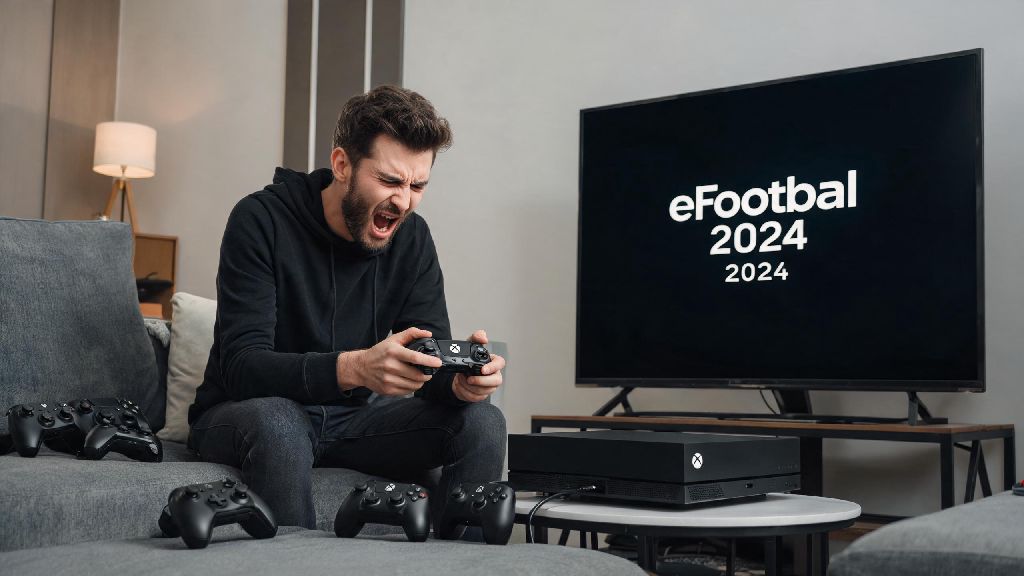
There’s nothing more annoying than grabbing your controller, grabbing a snack, and sitting down to grind ranked matches or play a casual local game with friends, only to find your controller won’t connect to eFootball 2024 on your Xbox. If you’re stuck trying to figure out how to add a controller on eFootball 2024 Xbox, you’re not alone: thousands of players run into small pairing or recognition issues every week, usually because of simple overlooked steps rather than broken hardware. This guide walks you through every pre-check, step, and common fix you need to get your controller connected and working smoothly, no technical expertise required.
Pre-Pairing Checks to Complete Before You Add a Controller on eFootball 2024 Xbox
Before you jump into the pairing process, taking 2 minutes to run through these quick checks will save you a ton of time troubleshooting later. Most connection issues happen because of small, easy-to-fix oversights, not because your controller or console is broken. First, Ensure your controller is not already paired to another device like a laptop, phone, or different Xbox console. Controllers can only hold a small number of pairings, and if it’s connected to another device nearby, it won’t show up for your Xbox. Next, check that your controller has enough battery: low battery can cause pairing failures or random disconnects mid-match, so swap in new batteries or plug it in to charge for 10 minutes before you start. If you’re using a third-party controller, confirm it’s officially licensed for Xbox, as unlicensed models often have compatibility gaps with sports games like eFootball. You also want to Update your eFootball 2024 game to the latest patch before you try pairing. Outdated game versions often have controller recognition bugs that developers have already fixed in newer updates, so a quick 5 minute update can resolve your issue before you even start pairing.
Step-by-Step Process to Pair Your Controller to Xbox for eFootball 2024
Once you’ve run through the pre-checks, the actual pairing process only takes about a minute. Follow these steps exactly to avoid common mistakes that cause pairing failures:
Once you’ve completed these steps, your controller should work perfectly for eFootball 2024 right away. If you want to customize your button mapping, you can do that in the same control settings tab, adjusting inputs for passes, shots, tackles, and skill moves to match your play style. If it’s still not working, or if it works on the Xbox home screen but not in the game, you’ll need to run through the common fixes we cover next.
Fixing Common Pairing Errors for eFootball 2024 Xbox Controllers
Even if you follow the steps exactly, you might run into issues like input lag, unresponsive buttons, or the game failing to recognize the controller entirely. Most of these issues have super simple fixes that take less than 2 minutes to complete. First, check if your controller works with other games on your Xbox. If it doesn’t work with any games, the issue is with your controller or console pairing, not eFootball itself. If it works with other games but not eFootball, you’ll want to go into the eFootball control settings and make sure the controller is set as the primary input device, not a keyboard or virtual input. If you’ve been troubleshooting for 10 minutes or more with no luck, it’s smart to step away for a short break to reset your focus. Frustration makes it far too easy to overlook small, obvious fixes that would resolve your issue in seconds. Many gamers turn to quick, low-stakes casual games during these short breaks, and Jaiho Rummy is a go-to pick for fast, engaging rounds that don’t take much mental energy, so you can return to your controller setup feeling refreshed and ready to spot the fix you missed. When you come back, first try clearing your controller cache: hold the Xbox button on the controller for 10 seconds to turn it off, remove the batteries for 30 seconds, put them back in, and re-pair the controller to the console. Clear your Xbox controller cache if you notice unresponsive inputs in matches, as old cached data can cause input conflicts that mess with your gameplay. If that doesn’t work, Check for controller firmware updates through the Xbox Accessories app. Outdated firmware can cause compatibility issues with newer game patches, so updating the firmware usually fixes any remaining recognition issues. If you still see random disconnects mid-match, check if you have other 2.4GHz devices like wireless headsets or routers too close to your console, as signal interference can break the controller connection.
Setting Up Multiple Controllers for Local Multiplayer eFootball 2024 Matches
If you’re planning to play local co-op or PvP matches with friends at home, you can pair up to 4 controllers to your Xbox for eFootball 2024. The process for pairing extra controllers is almost identical to pairing the first one, but there are a few extra steps to make sure everything runs smoothly. First, make sure each controller is assigned to a separate profile, either a guest profile or a linked Xbox account. If two controllers are assigned to the same profile, eFootball will only recognize one of them, so you’ll want to double-check this before you launch the game. You can also customize the control layout for each controller individually in the eFootball settings, which is great if your friends prefer different button mappings for things like passes, shots, or tackles. If you’re playing with new players who aren’t used to eFootball’s controls, you can even set up simplified control schemes for their controllers to make it easier for them to join in without a steep learning curve. Just make sure you don’t have more than 4 controllers paired at once, as the Xbox only supports up to 4 active controllers for most games, including eFootball 2024. Once all controllers are paired, you can launch eFootball 2024 and set up your local match, no extra configuration needed for most setups.
At the end of the day, figuring out how to add a controller on eFootball 2024 Xbox is a quick, simple process once you know what steps to follow and what common mistakes to avoid. Taking a couple of minutes to run through pre-checks before you pair will save you a ton of frustration later, and most common issues can be fixed with a quick cache clear or firmware update. If you’re still running into issues after trying all the steps in this guide, you can reach out to Xbox support or check the eFootball community forums for more specific fixes for your exact controller model. Once your controller is connected, you’re ready to jump into matches, grind ranked, or play casual games with friends with no interruptions.